When fees go unpaid, the debtors queue puts every outstanding balance in front of you, ready to call, visit, or remind. Then student clearance gates exams, report cards, and transfers behind a settled account — with a controlled override when you need one.
finance.simusim.com~12 min
§ 01The debtors queue
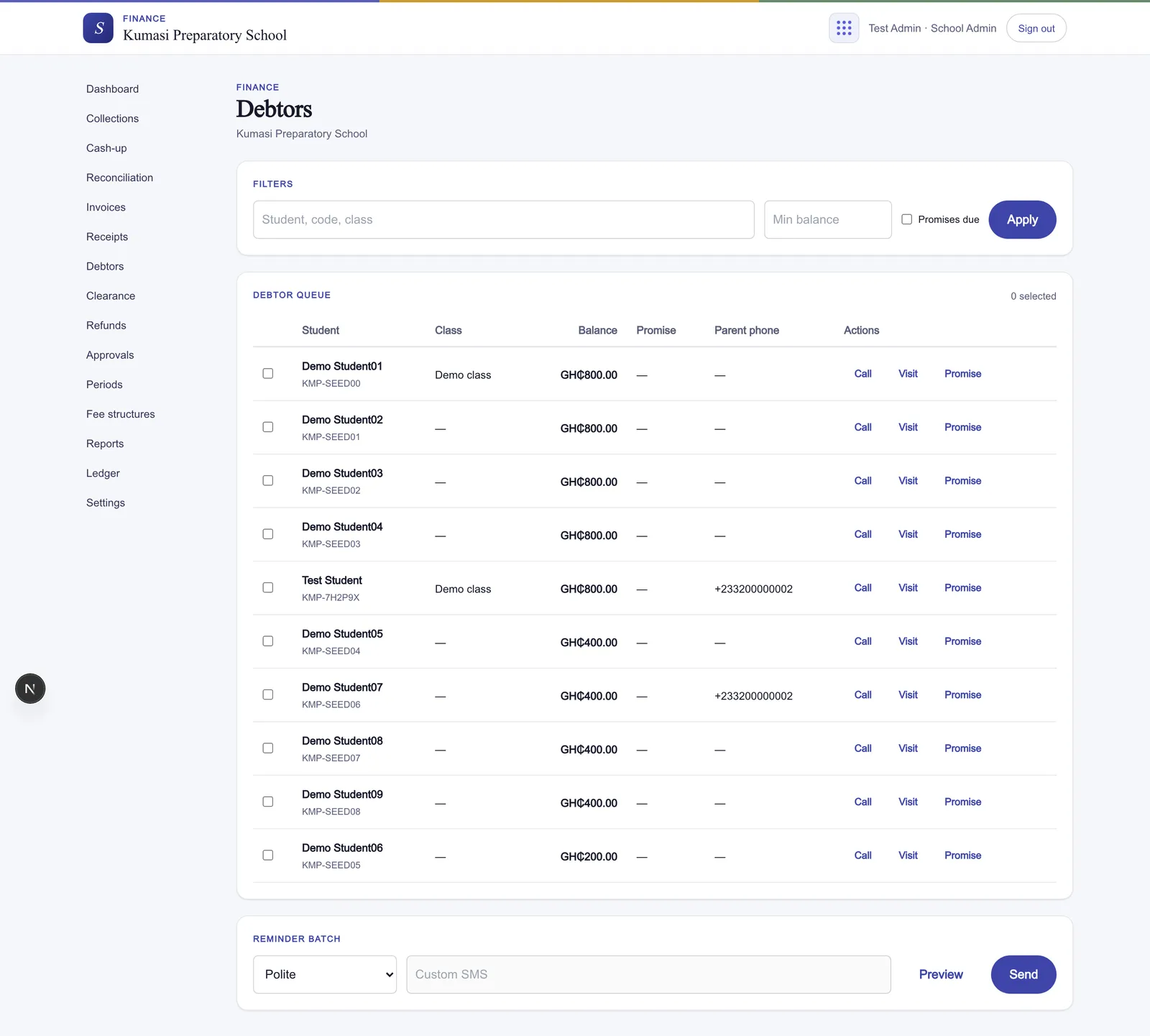
Open Debtors. Every student carrying an outstanding balance is listed here, so you never have to hunt invoice-by-invoice to know who owes what. Narrow the list with the filters — Student, code, class for free-text search, a Min balance to ignore the small change, and a Promises due checkbox to surface only the parents who said they'd pay by a date that has now arrived — then press Apply.
Fig.One row per student in arrears, oldest and largest balances ready to work down.
Each row shows the Student, their Class, the outstanding Balance, the next Promise (the date the parent committed to pay), and the Parent phone to reach them on. The per-row actions log your follow-up:
Call — record that you phoned, with a note of what was said.
Visit — log a home or office visit, again with a note.
Promise — capture a commitment to pay, with a note and a promise date that then shows in the row and feeds the Promises due filter.
Each action prompts for a note (and, for a promise, the promise date). You'll see “Follow-up saved.” for a call or visit, and “Promise saved.” once a promise is logged. When your filters return nobody, the queue reads “No debtors match these filters.” — which, on a no-filter view, is the good news that nobody is in arrears.
§ 02Reminder SMS batches
Rather than ring everyone one at a time, you can text a whole batch of debtors at once. Tick the rows you want to remind — the count updates to read “{N} selected” — then choose the tone of the message:
Polite — a gentle first nudge.
Firm — a clearer follow-up for balances that have lingered.
Final — a last notice before clearance bites.
Custom — enables a message box where you write your own, up to 140 characters.
Press Preview. You see the estimated cost of the batch and the first 20 recipients — any parent who has opted out shows as Suppressed and won't be charged or messaged. The banner reads “{N} recipients previewed.”
Happy with it? Press Send. The messages queue for delivery and you'll see “{N} reminders queued.”
Tip
Reminder SMS draw from your school's SMS wallet, the same balance that powers attendance and result alerts — so a big batch on a low wallet is worth a glance before you send.
§ 03Student clearance
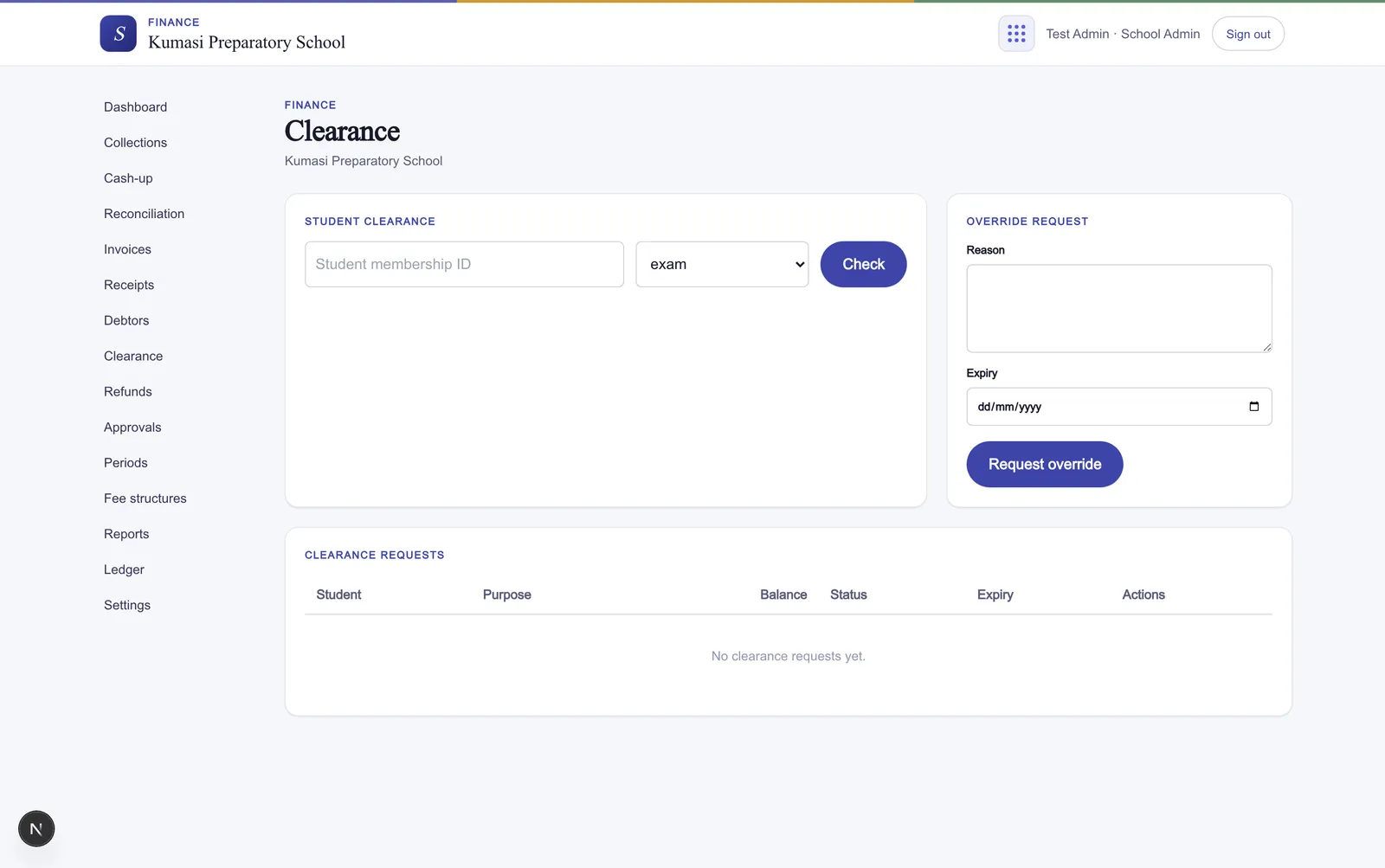
Clearance answers a single question at the office window: is this student paid up enough to sit the exam / collect the report card / be given a transfer letter? Open Clearance — it's a two-panel screen.
Fig.Check on the left, request and approve overrides on the right, history below.
Checking a student
On the left, Student clearance: enter the Student membership ID, pick a Purpose — exam, report card, transfer letter, graduation, reenrollment, or exeat card — and press Check. The result names the student and shows either Cleared or Blocked, alongside their current balance, so the answer is unambiguous.
Requesting an override
Sometimes a blocked student must still be let through — a hardship case, a payment plan, a parent who'll settle next week. The right panel, Clearance override, is how: enter a Reason and an optional Expiry, then press Request override. You'll see “Clearance override requested.”
The requests table below lists each request with its Student, Purpose, Balance, Status, and Expiry. An admin works that table:
Press Approve (with an optional override expiry) to let the student through, or Reject (with a reason) to deny it.
An approved override flips the student to cleared for that purpose; the banner reads “Clearance override approved.”
Approved rows expose a Certificate PDF link — a printable clearance certificate the student can present.
Before any overrides exist, the table reads “No clearance requests yet.”