Match your school's bank and mobile-money statement against the payments Finance has recorded, so nothing slips through — and track every deposit you can't yet attach to a student.
finance.simusim.com~10 min
§ 01Why reconcile
Reconciliation lines your school's bank or mobile-money statement up against the payments Finance has already recorded. Every deposit on the statement should map to a receipt; anything that doesn't is either a payment someone forgot to enter, or money that arrived without a name attached. Reconciling regularly means nothing is missed — and the deposits you can't yet place are tracked as suspense rather than quietly lost.
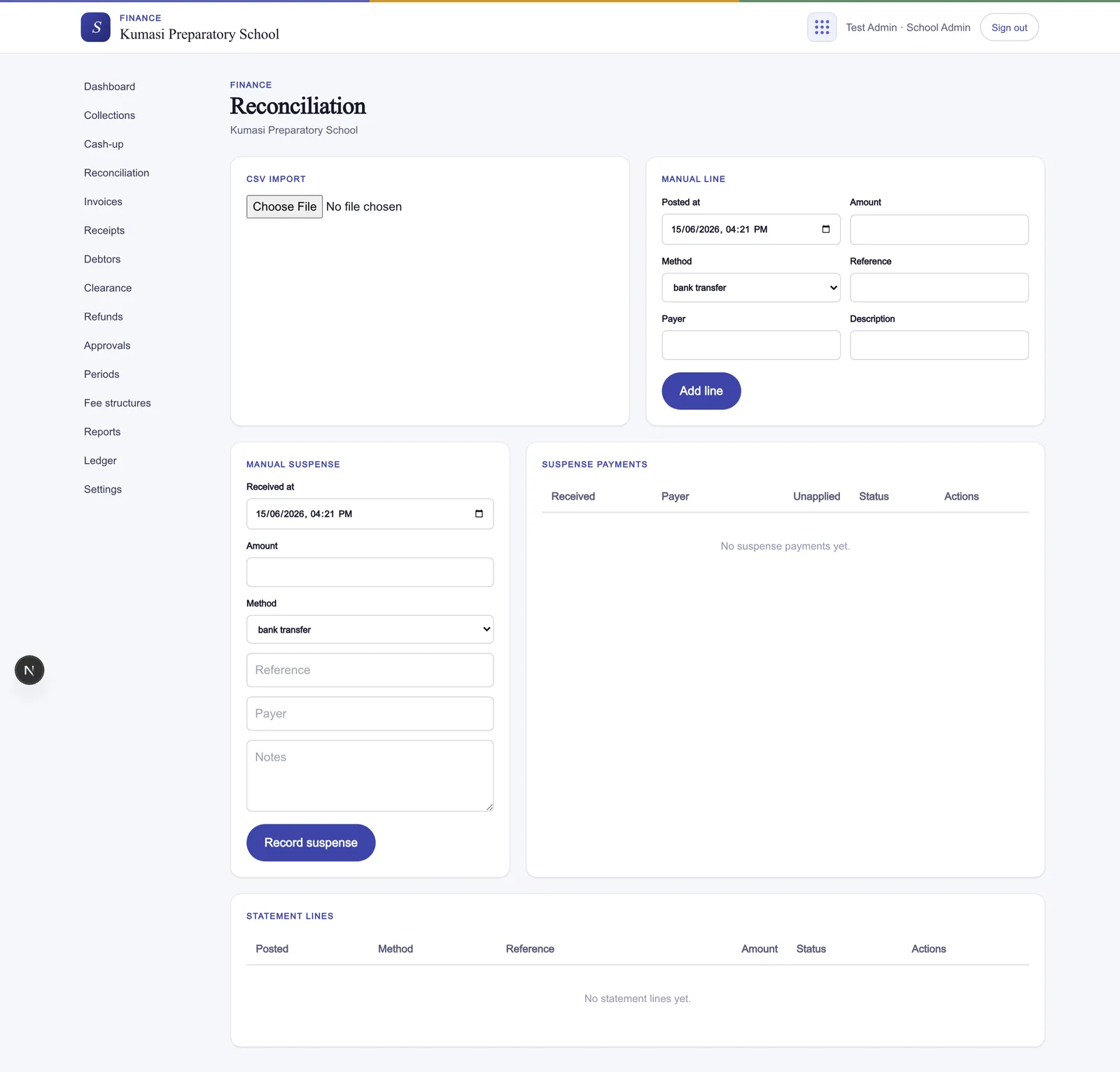
Fig.Reconciliation has two halves — importing and matching statement lines, and clearing suspense payments.
§ 02Importing a statement
Open Reconciliation. In the left panel, choose a .csv file exported from your bank or mobile-money portal, then map the columns using the dropdowns: posted date, amount, method, reference, payer, and description.
Pick the .csv file. A 5-row preview appears so you can confirm you've grabbed the right export.
Match each statement column to a field with the dropdowns. Methods across the statement are read as cash, bank transfer, mobile money, or cheque.
Press Import {N} rows. You'll see “{N} statement lines imported.”
Not importing a file? You can also add a single line by hand with Add line — handy for a one-off deposit you want to reconcile on its own.
§ 03Matching statement lines
Imported lines fill the statement-lines table — Posted, Method, Reference, Amount, and Status. Work down the unmatched lines; each one offers three actions:
Match payment — enter the payment id this deposit belongs to. You'll see “Statement line matched to payment.”
Suspense — moves the line to suspense, auto-creating a suspense payment for it. You'll see “Statement line moved to suspense.”
Dismiss — with a reason, for a line that isn't a school payment at all (bank charges, a transfer between your own accounts). You'll see “Statement line dismissed.”
§ 04Suspense payments
A suspense payment is money you've received but can't yet tie to a student — a mobile-money deposit with no name, a bank transfer with only a reference. You can also record one by hand with Record suspense: enter the received at, amount, method, reference, payer, and any notes. You'll see “Suspense payment recorded.”
The suspense table lists Received, Payer, Unapplied, and Status. When you work out whose money it is, press Apply to attach it to a student and invoice and issue a receipt — “Suspense applied with receipt {number}.” When everything's placed, the table simply reads “No suspense payments yet.”
Tie it to the report
The Bank & MoMo Lodgements report is the other half of this loop — it lists what should have hit your accounts, so you can chase any statement line that never showed up. See Reports.