A fast path to collecting fees on day one. Sign in, record a payment at the collections desk, hand over the receipt, see who still owes, and close the day with a cash-up — the whole loop in five steps.
finance.simusim.comBursar: phone + PIN · Admin: email~8 min
§ 01Sign in to Finance
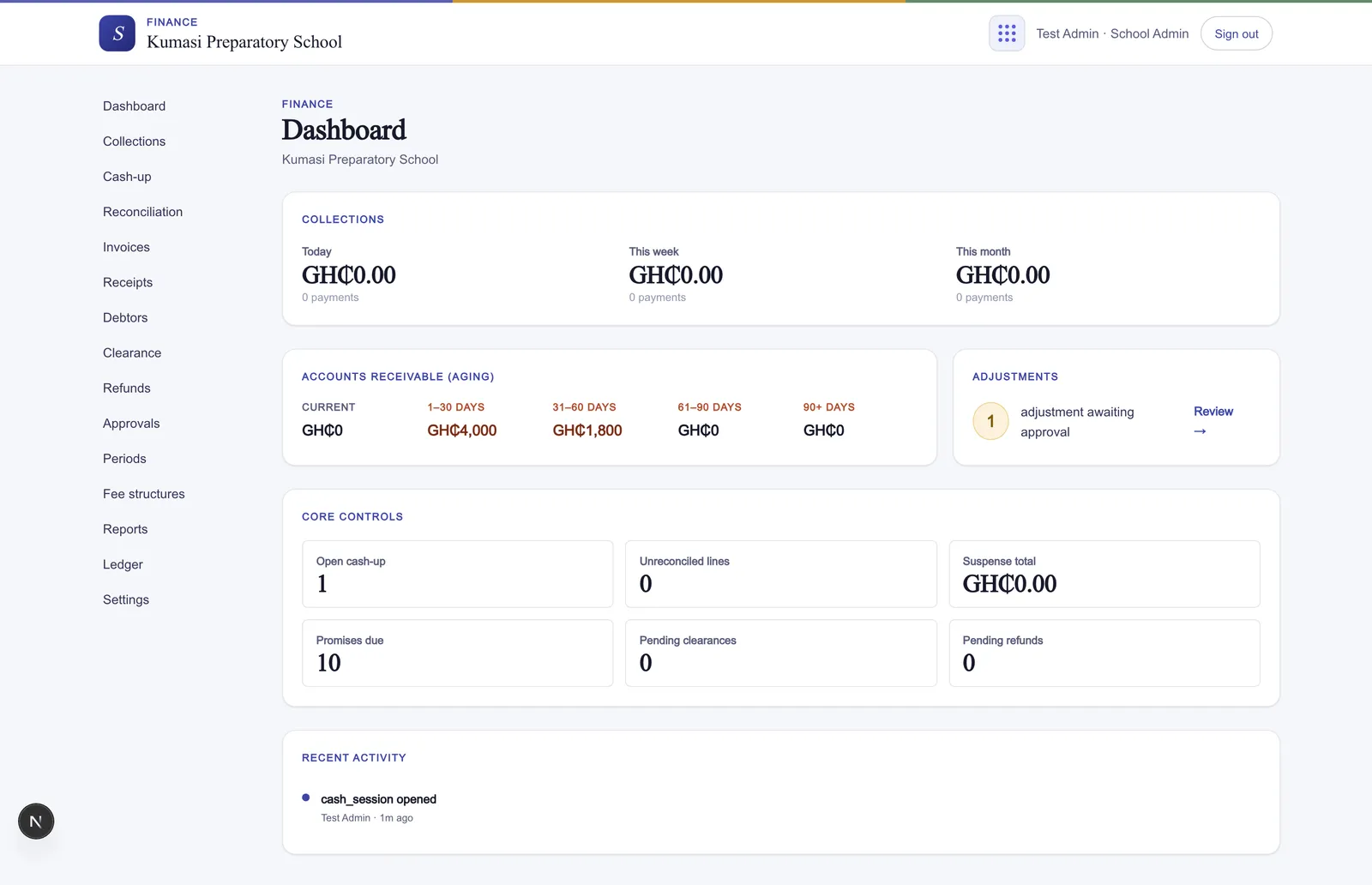
Bursars sign in through the Parent or Teacher door with a phone number and PIN; school admins use their email. You land on the Finance dashboard — collection totals for today, this week, and this month, plus alert tiles for what needs attention.
Fig.Your home base. The dashboard shows today's takings and the tiles that need attention.
§ 02Find a student & record a payment
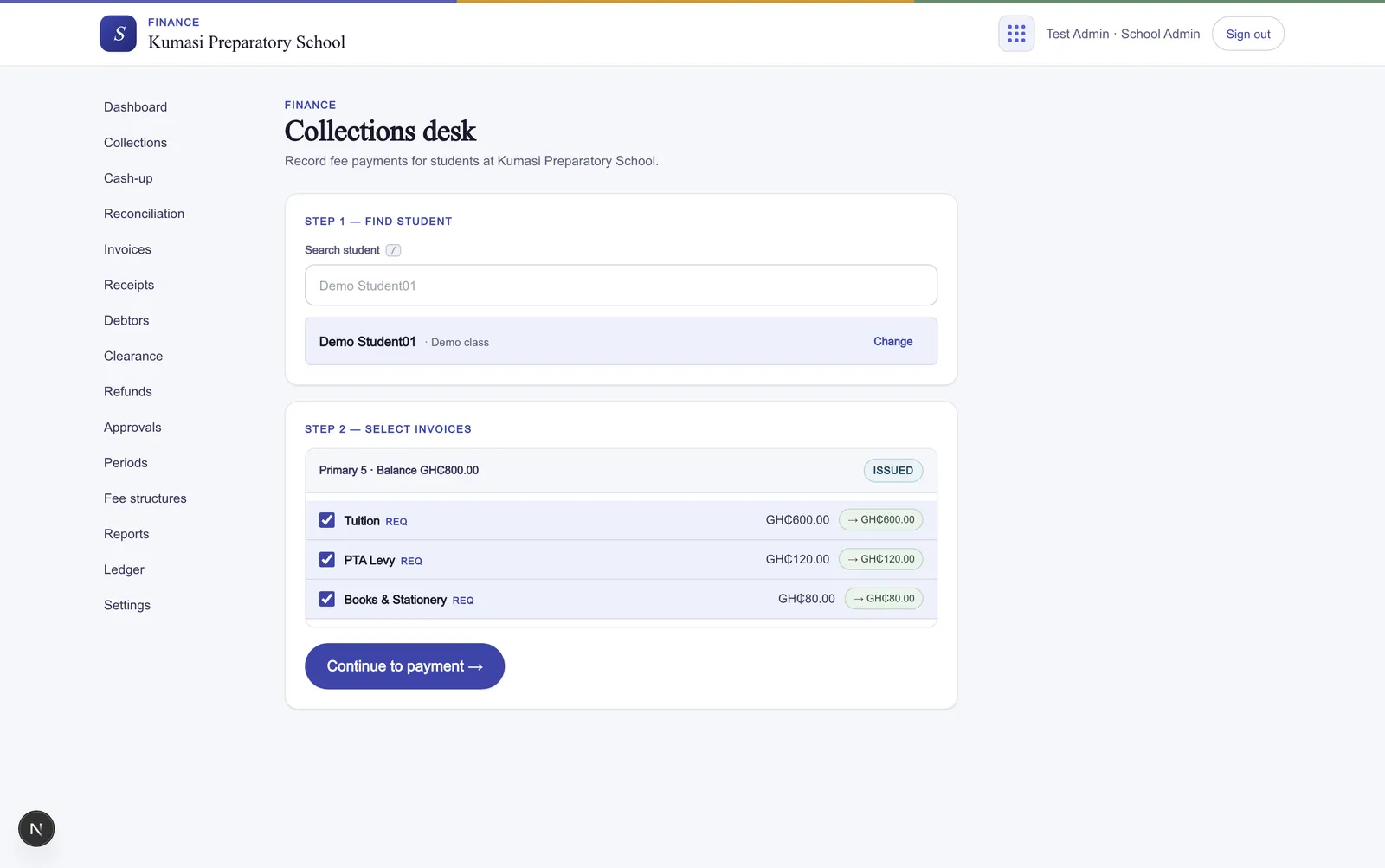
A parent arrives at the office with money. Open Collections — the everyday screen — and work through three steps:
Step 1 — Find student. Type a name; pick the student from the results.
Step 2 — Select invoices, then press Continue to payment →. (No outstanding invoices? The button reads Record prepayment and the money sits as credit.)
Step 3 — Record payment. Enter the Amount (GHS) and pick the Payment method — Cash, Bank transfer, Mobile money, or Cheque — then press Record payment.
Fig.Find → select → record. One minute per parent at the desk.
§ 03Hand over the receipt
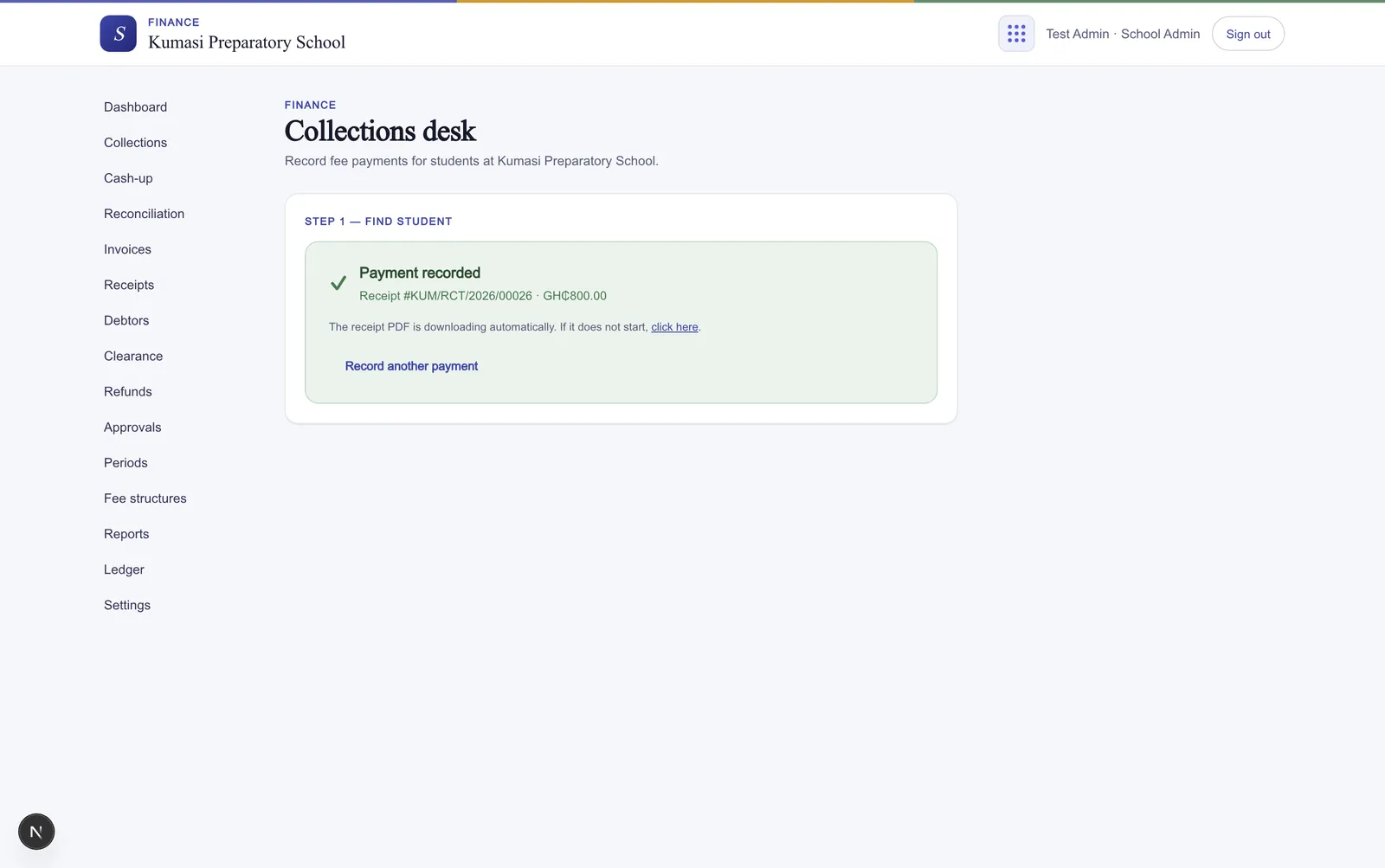
You see “Payment recorded” and the receipt PDF downloads automatically. Print it or WhatsApp it to the parent, then press Record another payment for the next person in line.
Fig.The receipt downloads itself. Hand it over, then take the next payment.
§ 04Check who owes
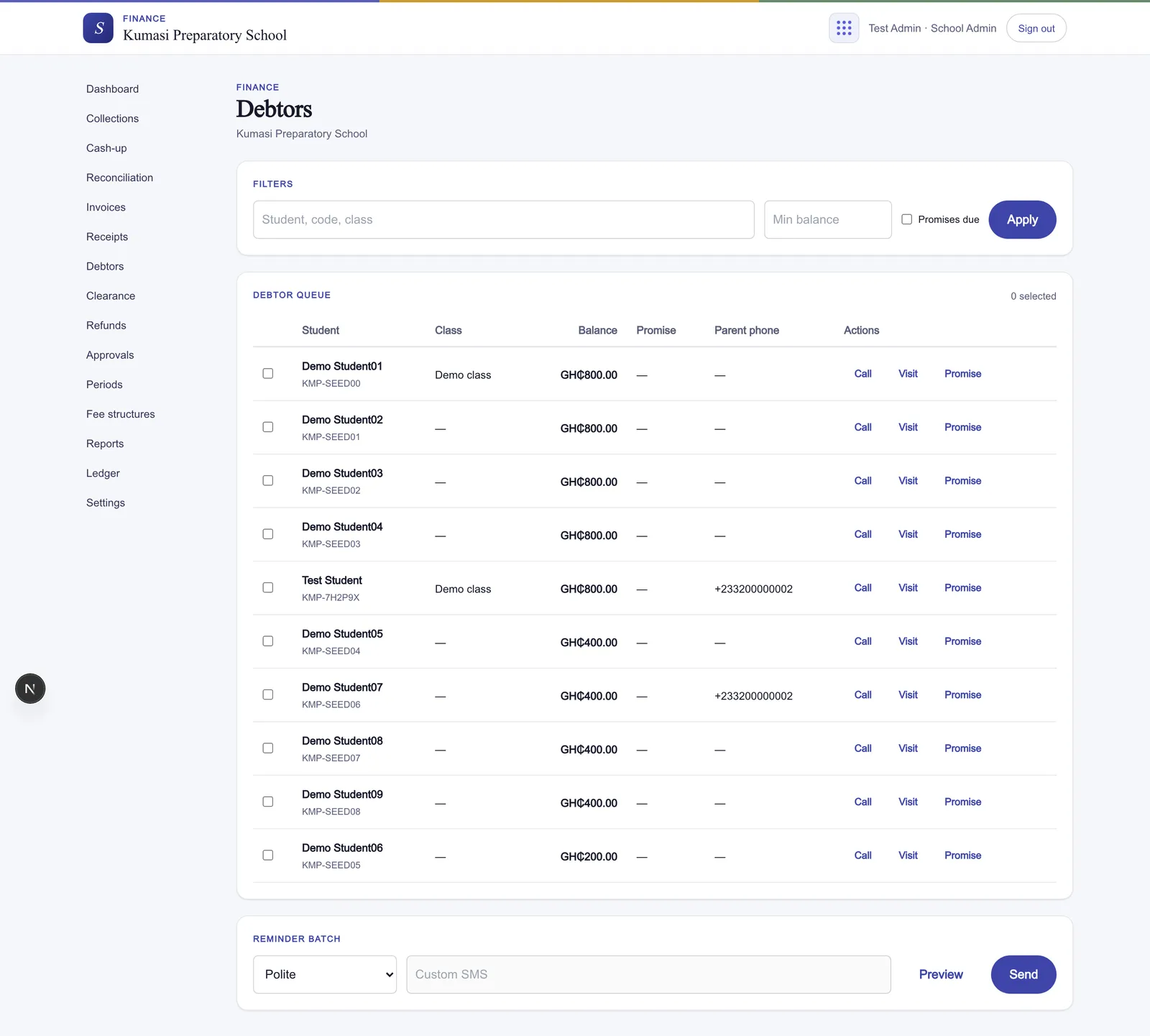
Open Debtors to see every outstanding balance, the promises due, and a way to send a reminder SMS to the families who are behind.
Fig.Outstanding balances and promises due, with a reminder SMS a click away.
§ 05Close the day with a cash-up
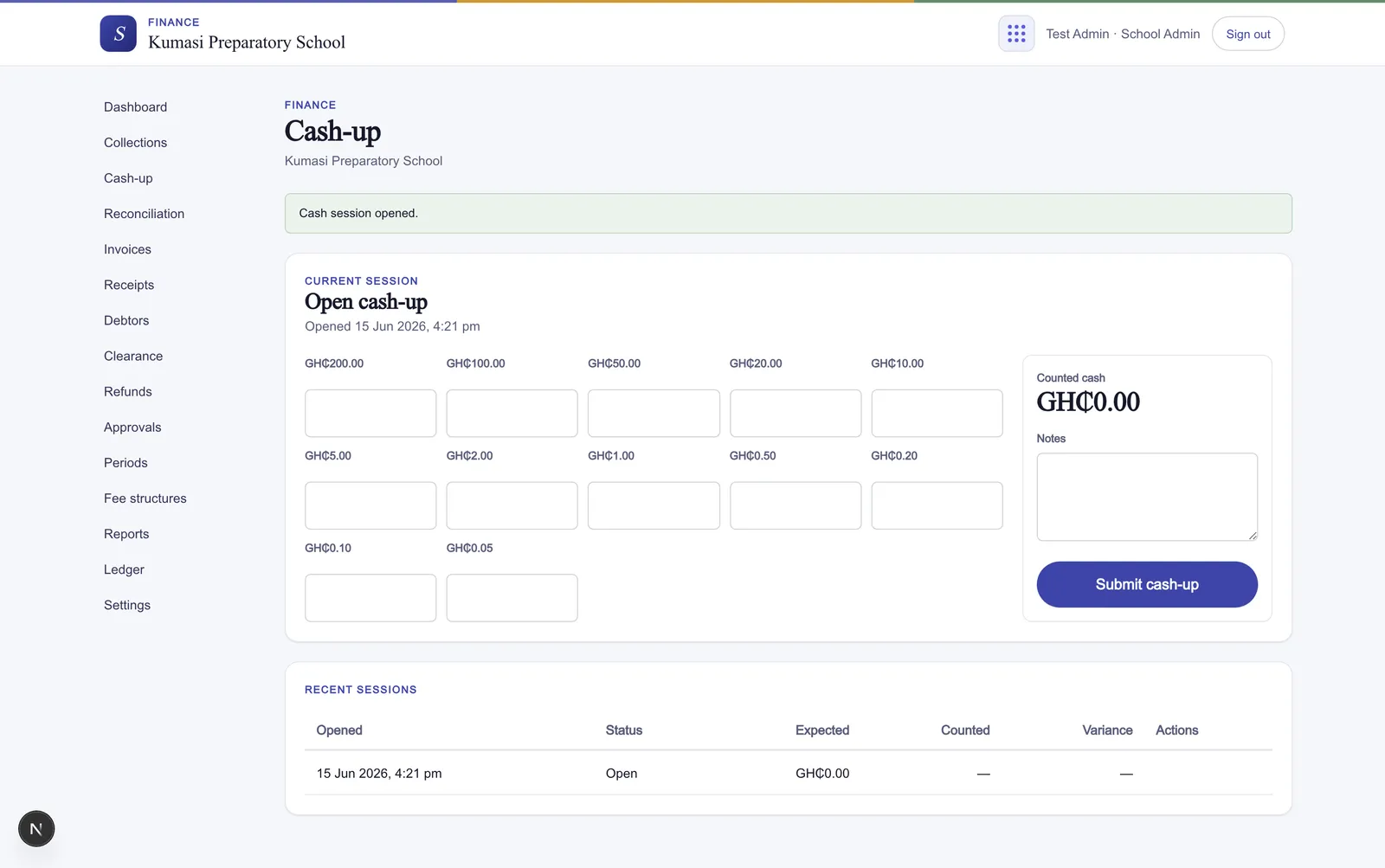
Open Cash-up and press Open session. Count the cash into the denomination grid, then press Submit cash-up — it goes to an admin for review. The day's books are reconciled.
Fig.Count into the grid; submit for the admin to review and close the day.
Go deeper
That's the everyday loop. For the full walkthrough — allocation rules, prepayments, mobile-money networks, and the cash-up reconciliation in detail — see Collecting fees & cash-up.