Reduce a student's bill — or send money back out — the controlled way. Every concession is requested with a reason, an admin reviews it, and a refund only ever traces to an approved refund adjustment. Here's the whole loop.
finance.simusim.comAdmin actions~10 min
§ 01Discounts, scholarships & waivers
You never reduce a student's bill by editing numbers in place. Instead a fee adjustment is requested and then approved — so every concession is on the record with a reason and a name against it.
An adjustment comes in a few kinds:
Discount — a one-off reduction on an invoice (e.g. a sibling or early-payment discount).
Scholarship — a standing reduction for a sponsored or bursary student.
Waiver — writing off part or all of what's owed.
Refund — sending money back out on a paid invoice (see § 03).
Reversal — undoing an adjustment that was applied in error.
A bursar or admin raises one against a student's invoice with a reason. It sits as Pending until an admin reviews it in the approvals queue.
Why request-then-approve
Splitting a concession into smaller pieces doesn't sneak it past review — adjustments are counted cumulatively per invoice, so a large total still needs an admin's sign-off.
§ 02The approvals queue
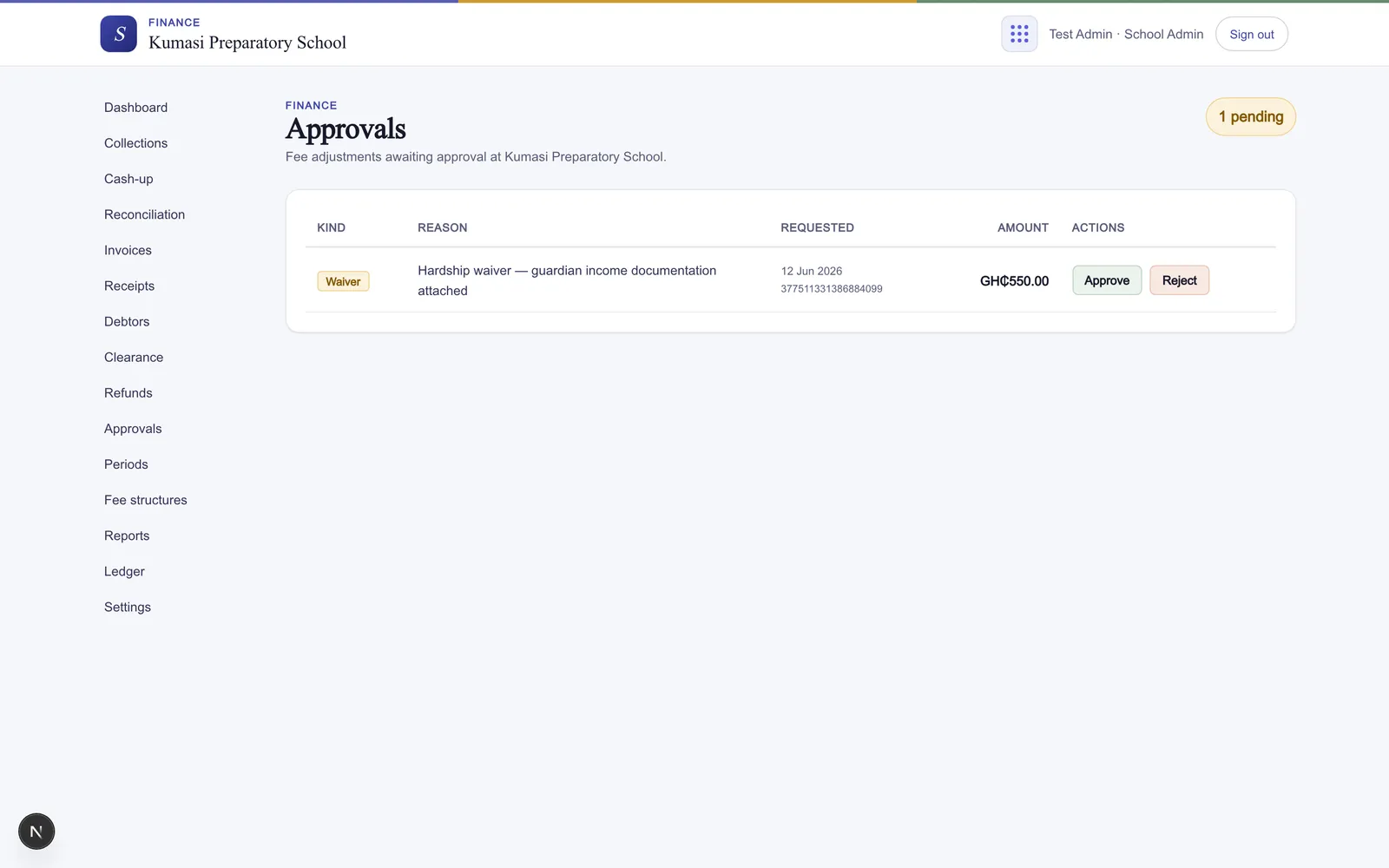
The Approvals page is admin-only — it's where every pending fee adjustment waits for a decision. The header carries a "{N} pending" badge so you can see at a glance how much is outstanding.
Fig.Every pending adjustment lands here for an admin to approve or reject.
Each row shows the request at a glance:
Column
What it tells you
Kind
Discount, Scholarship, Waiver, Refund or Reversal.
Reason
The note the requester gave for the adjustment.
Requested
Who raised it, and when.
Amount
How much the bill changes by.
Two actions sit on each row:
Approve — an optional note, then the adjustment applies to the invoice.
Reject — a rejection reason is required; leaving it blank shows “Please enter a rejection reason.”
The status of each adjustment is colour-coded: Pending (amber), Approved (green), Rejected (red). When there's nothing waiting, the queue reads “No pending adjustments to review.”
§ 03Issuing a refund
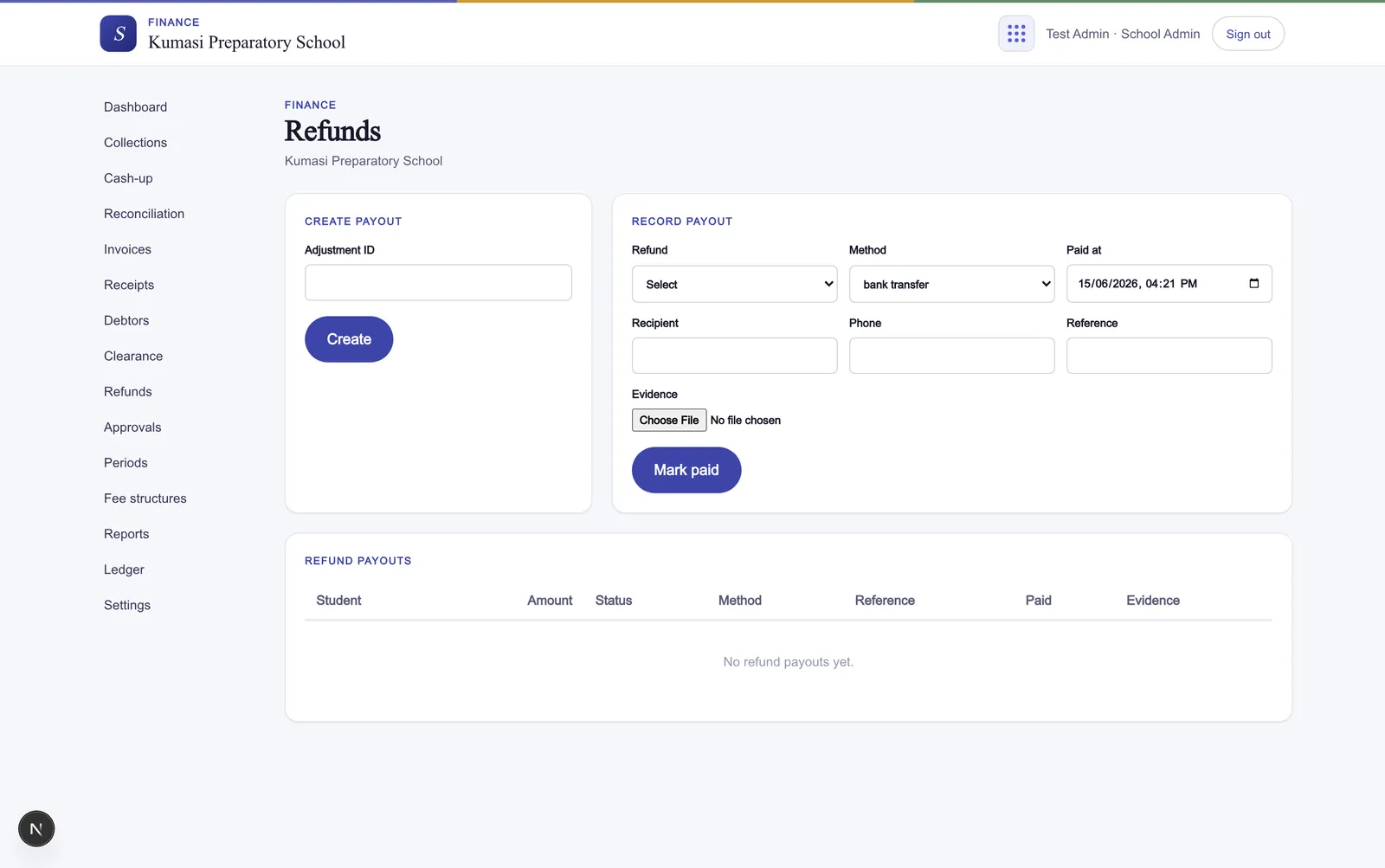
The Refunds page is where an approved refund turns into actual money going out. It works in two halves.
Fig.Create the payout from an approved adjustment on the left; record that you've paid it on the right.
Create payout
On the left, an approved Refund adjustment carries an Adjustment ID. Paste it in and press Create — that makes a pending refund payout, ready to be paid out.
Record payout
On the right, once you've actually handed over the money:
Pick the pending refund from the list.
Choose a Method — cash, bank transfer, mobile money or cheque.
Set the Paid at time.
Enter the Recipient (required) and, optionally, their Phone.
Add a Reference (required) — the transfer or cheque reference.
Attach Evidence (PNG / JPEG / PDF) — a transfer slip or signed acknowledgement.
Press Mark paid.
The payouts table tracks every refund with the Student, Amount, Status (pending, paid, canceled, disputed), Method, Reference, Paid date and the attached Evidence. You'll see “Pending refund payout created.” after Create and “Refund marked paid.” after Mark paid. With nothing recorded yet, the table reads “No refund payouts yet.”
Refunds trace to an approval
A refund must trace to an approved refund adjustment first — there's no way to pay money out that didn't go through approvals. Request the refund adjustment, get it approved, then create and pay the payout.