At the start of each term you set what each class pays, open the billing period — which builds a draft invoice for every student — then issue them. This is mostly admin work: bursars view it, but they don't change it.
finance.simusim.comAdmin setup~12 min
§ 01Fee structures — what each class pays
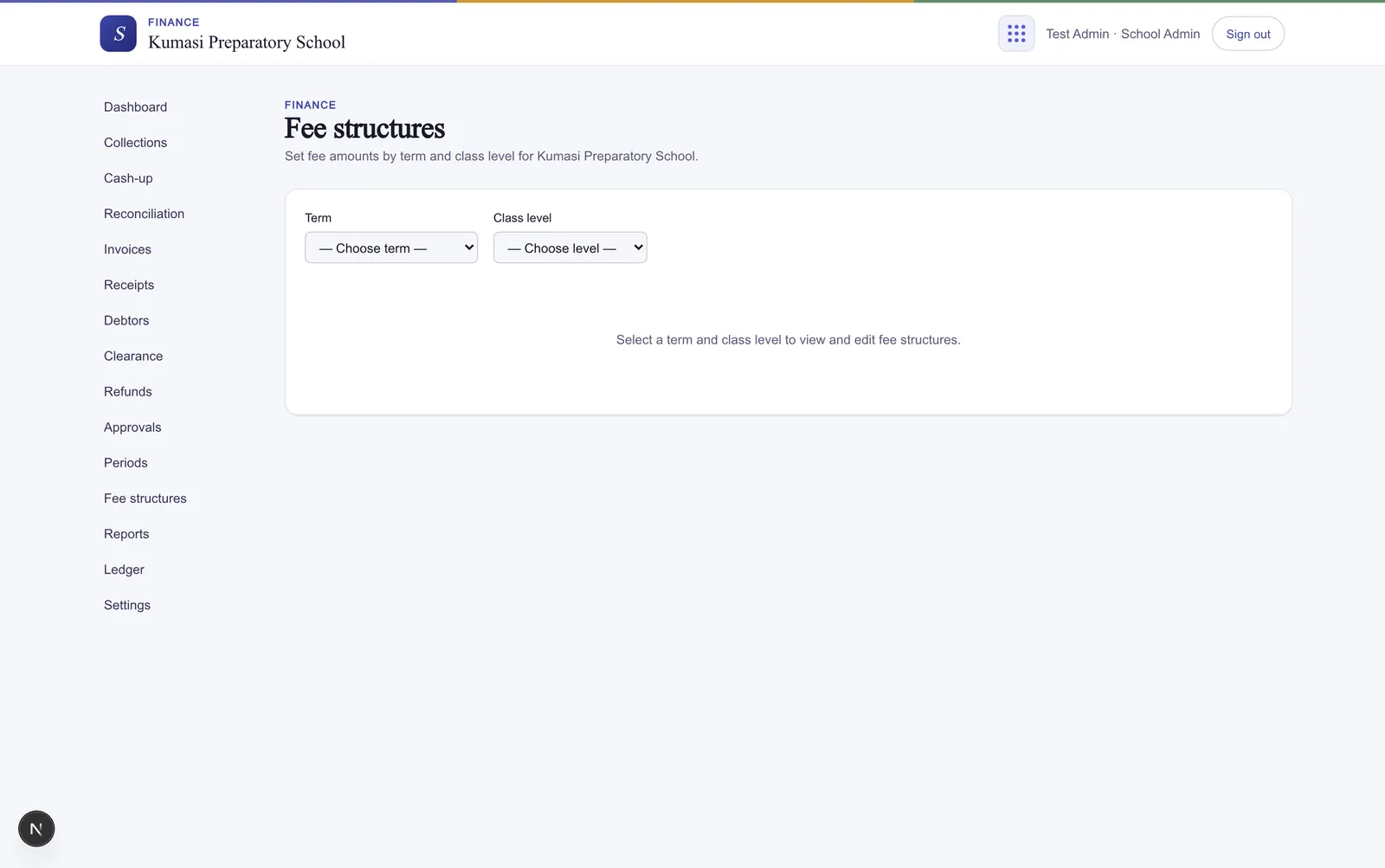
Open Fee structures (admin). Pick a Term and a Class level; you get a grid of fee categories against class levels with an amount input in each cell. Enter what each class pays, then press Save.
Fig.Copy from term reuses last term's structure so you only adjust what changed.
If invoices already went out
A warning appears if invoices were already issued for the term — “Changing fees will affect future invoices.” Existing invoices keep their amounts; the change applies going forward.
§ 02Billing periods
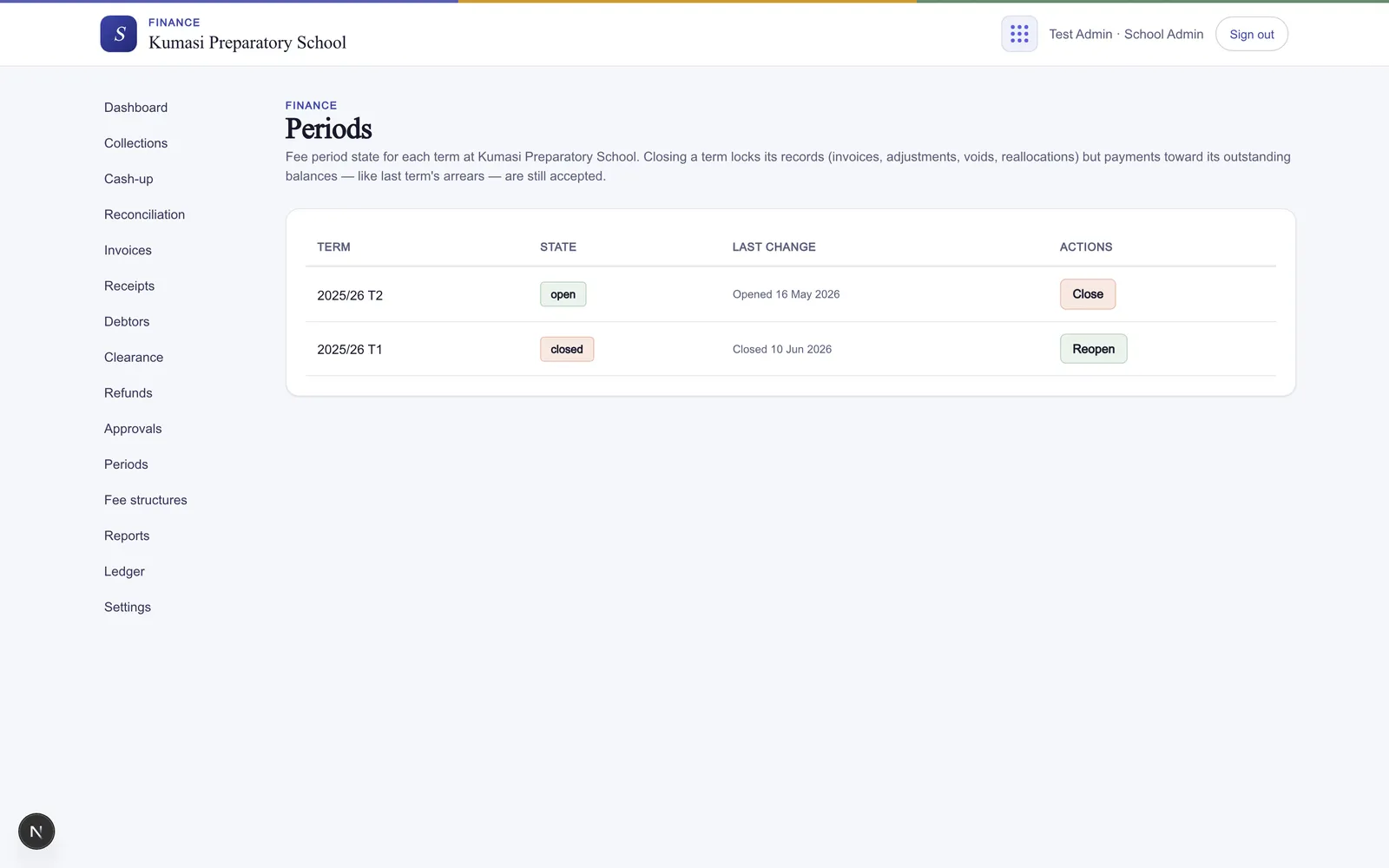
Open Periods. Each term carries a state — Not opened, Open, or Closed — and the admin actions follow from it.
Fig.One row per term; the available action depends on the term's state.
Open — a confirmation notes it generates draft invoices for all students.
Close — takes an optional reason and locks records (invoices, adjustments, voids); outstanding balances stay payable.
Reopen — requires a reason; leaving it blank fails validation with “Reason is required to reopen a period.”
If nothing is set up yet, the screen reads “No terms configured. Set up your term calendar first.”
§ 03Issuing & working with invoices
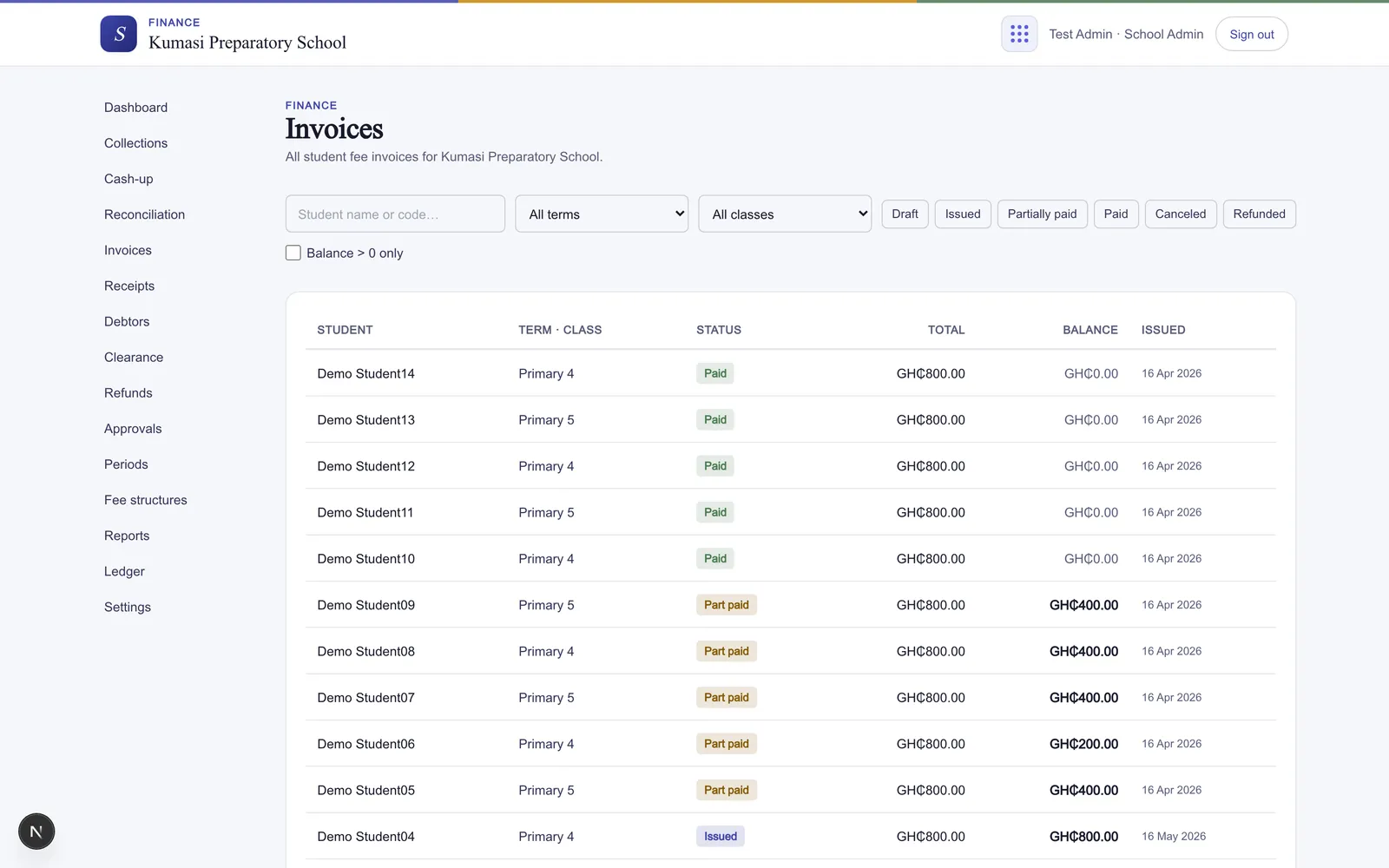
Open Invoices. Filter by term, class level, and status (Draft, Issued, Partially paid, Paid, Canceled, Refunded), search by name or code, and tick Balance only to hide settled rows. Admins press Issue invoices to issue the term's drafts in bulk.
Fig.Filter to a term and status, spot-check the drafts, then issue them in bulk.
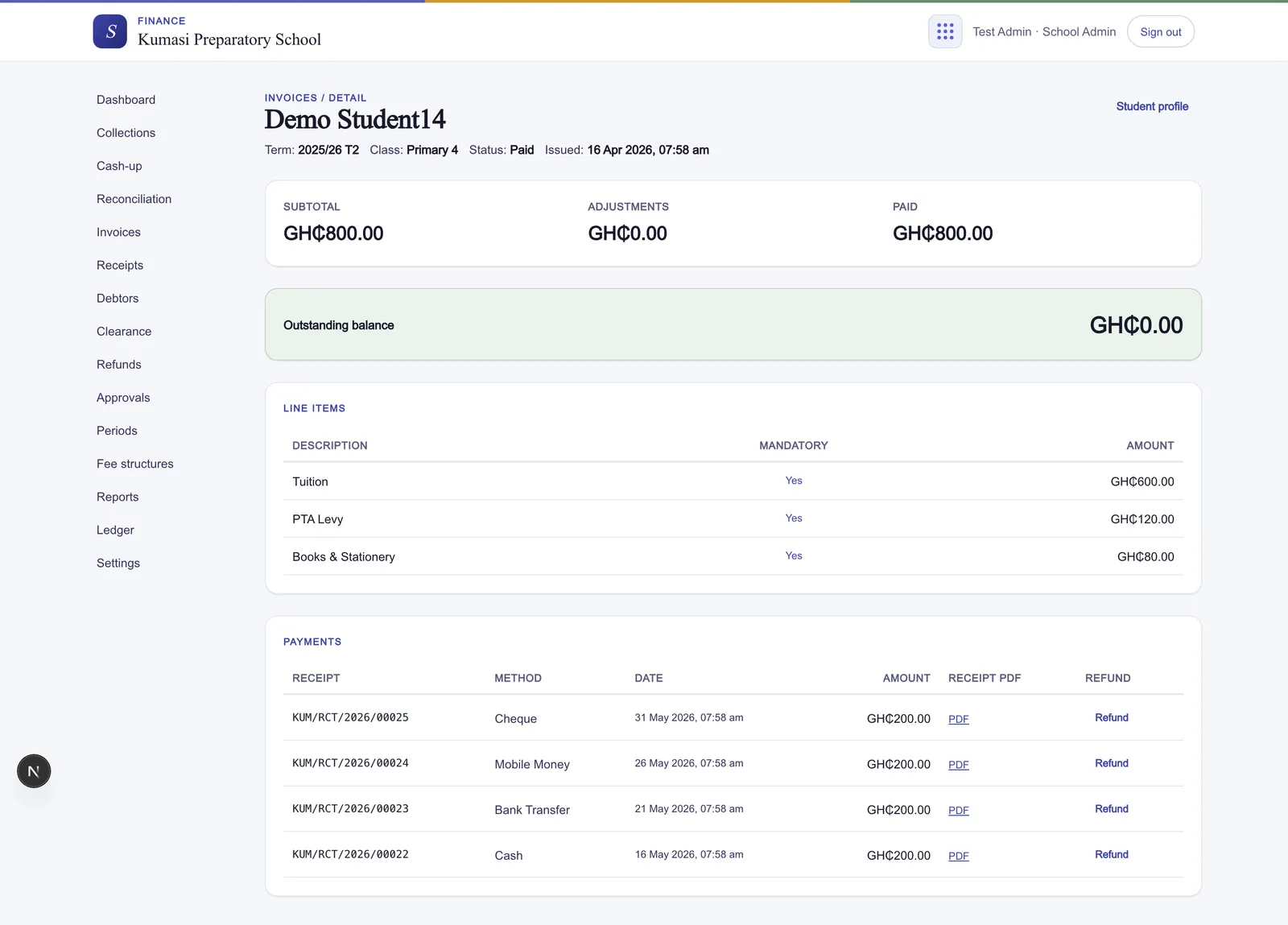
Click any row to open the invoice detail: its line items, adjustments, payments, and a scoped audit log. From here an admin can Cancel invoice (on a draft, issued, or partially paid invoice) or Request refund (if the invoice is overpaid).
Fig.Everything that touched the invoice — lines, adjustments, payments, audit — on one screen.
Looking for the student account?
The per-student fee account — its statement, invoices, payments, adjustments and parents tabs, plus Download statement PDF — is covered in the Finance reference.