Seven steps to a working school. Do these in order today — each one unlocks the next, and every other app depends on them. Want the unhurried version with screenshots at every turn? Follow Set up a brand-new school.
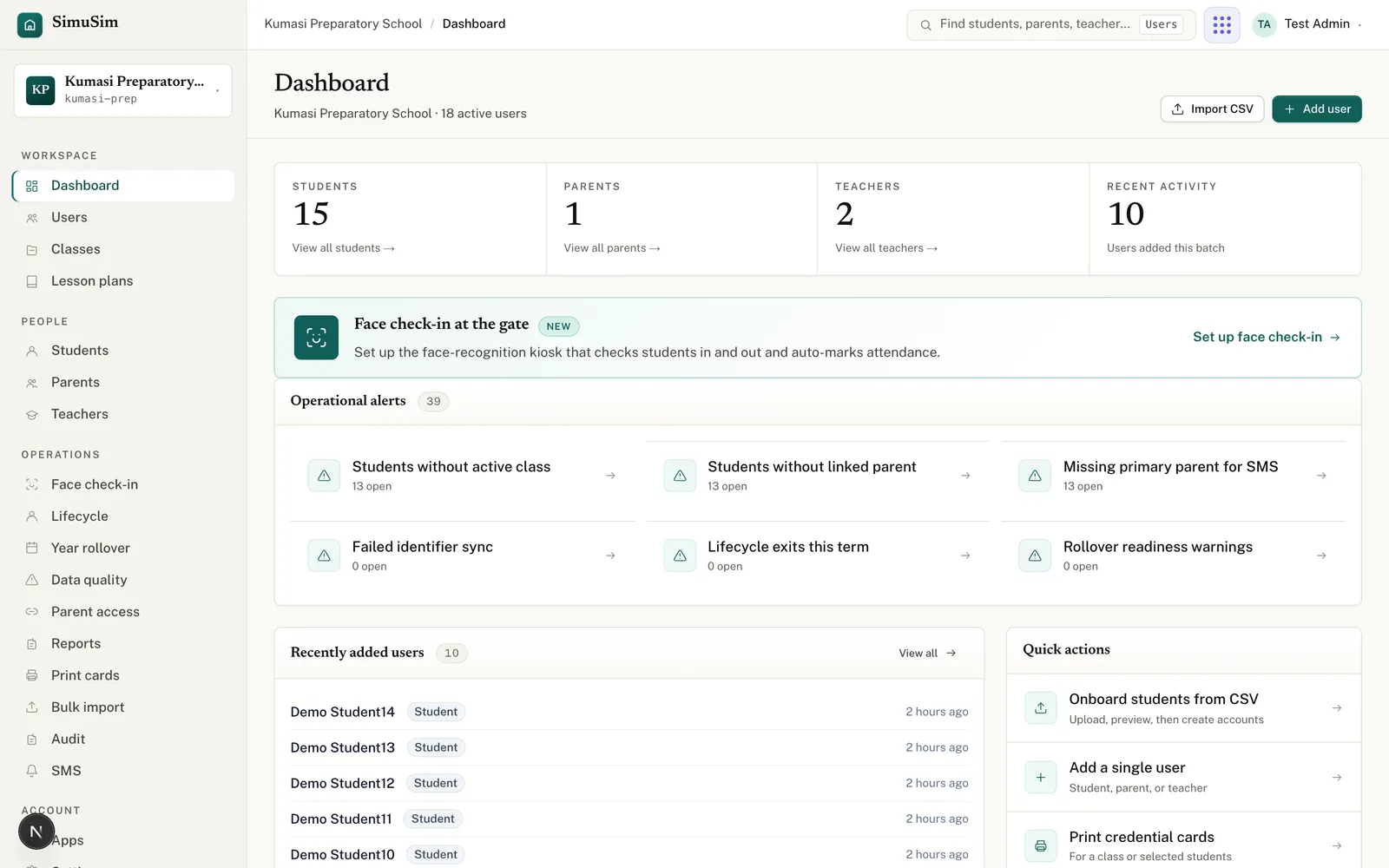
Open your school's sign-in page, choose the Admin door, and sign in with your email and password. You land on the Dashboard — counts of students, parents and teachers, a list of operational alerts, recently added users, and quick actions.
Fig.The dashboard is your control room. The left sidebar groups everything into Workspace, People, Operations and Account.
§ 02Set the academic year & term
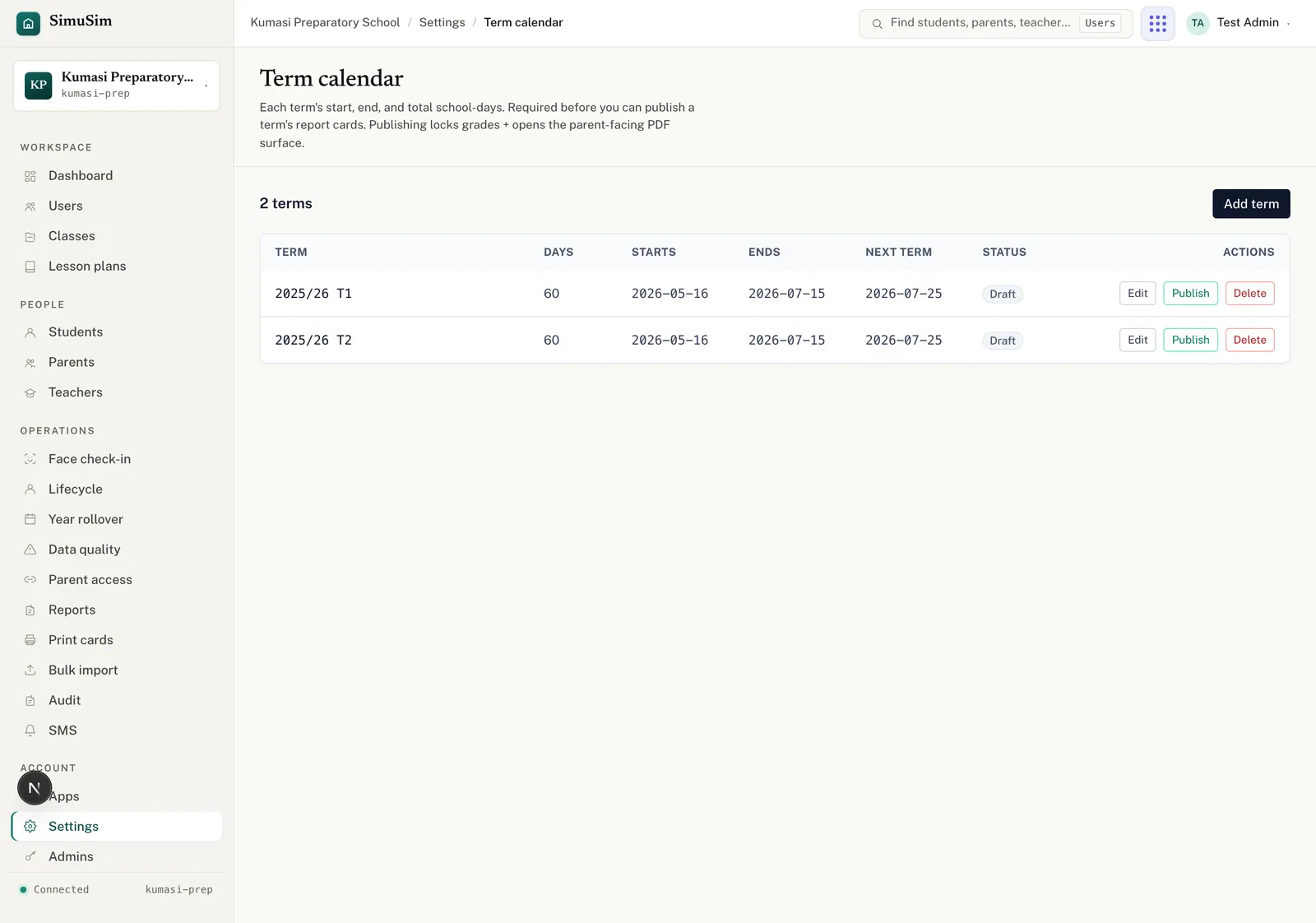
Open Settings and set the Current academic year (in the form 2025/26) and the Current term (a free-text field in the form 2025/26 T1, format YYYY/YY T[1-3]), then press Save. This becomes the default everywhere — new classes, CSV imports, the Gradebook. Nearly every "the list is empty" problem traces back to this step being skipped.
Fig.Settings → Term calendar. Add each term with its dates and school-day count — report cards can't publish without it.
§ 03Add subjects & a grade scale
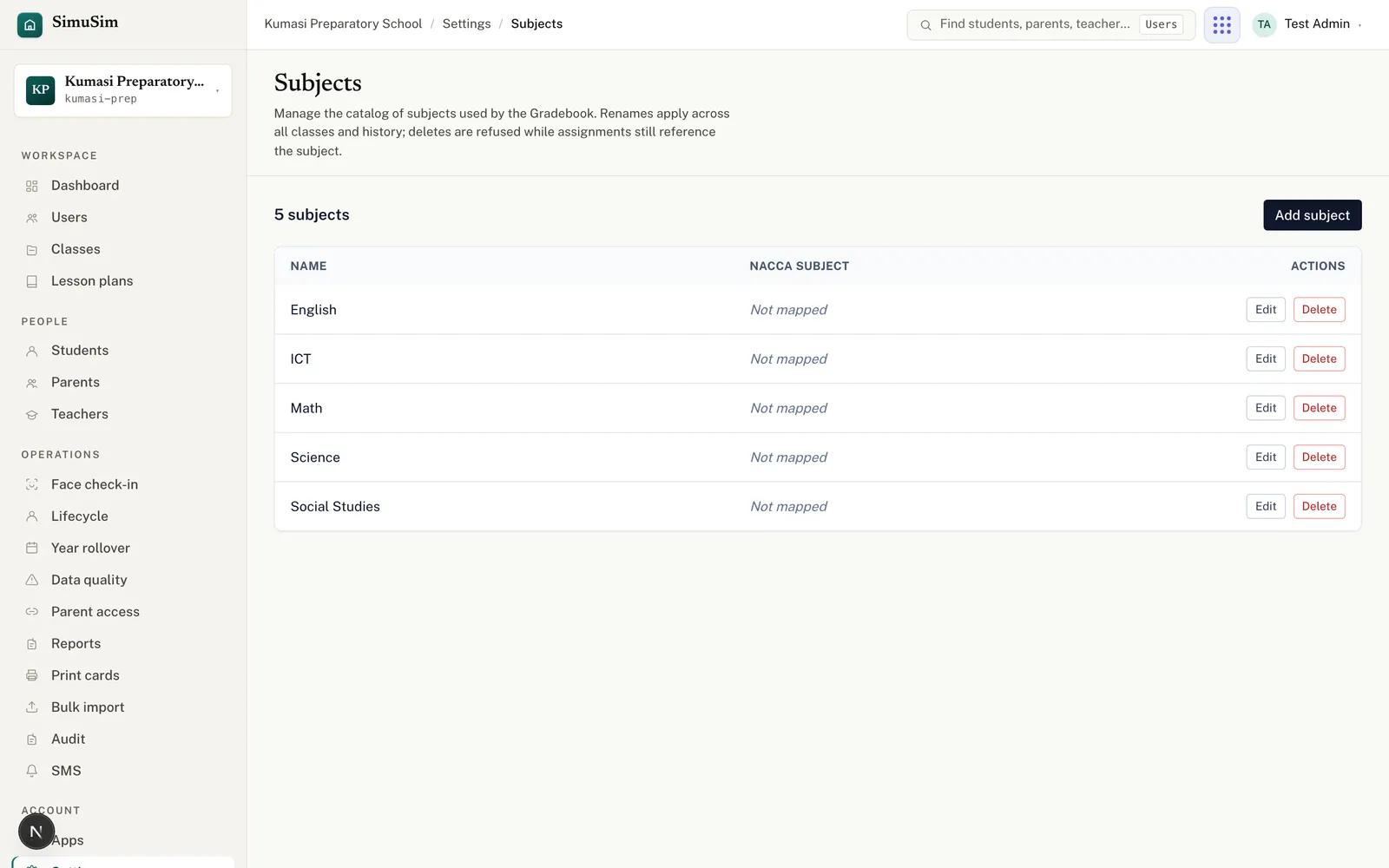
In Settings → Subjects, create every subject you teach. In Settings → Grade scales, define how scores map to letters and remarks (e.g. 80–100 → A → "Excellent"). The Gradebook, lesson plans and report cards are all organised around these.
Fig.Subjects power the Gradebook and lesson plans. Grade scales (next card in Settings) drive report-card letters.
§ 04Create a class
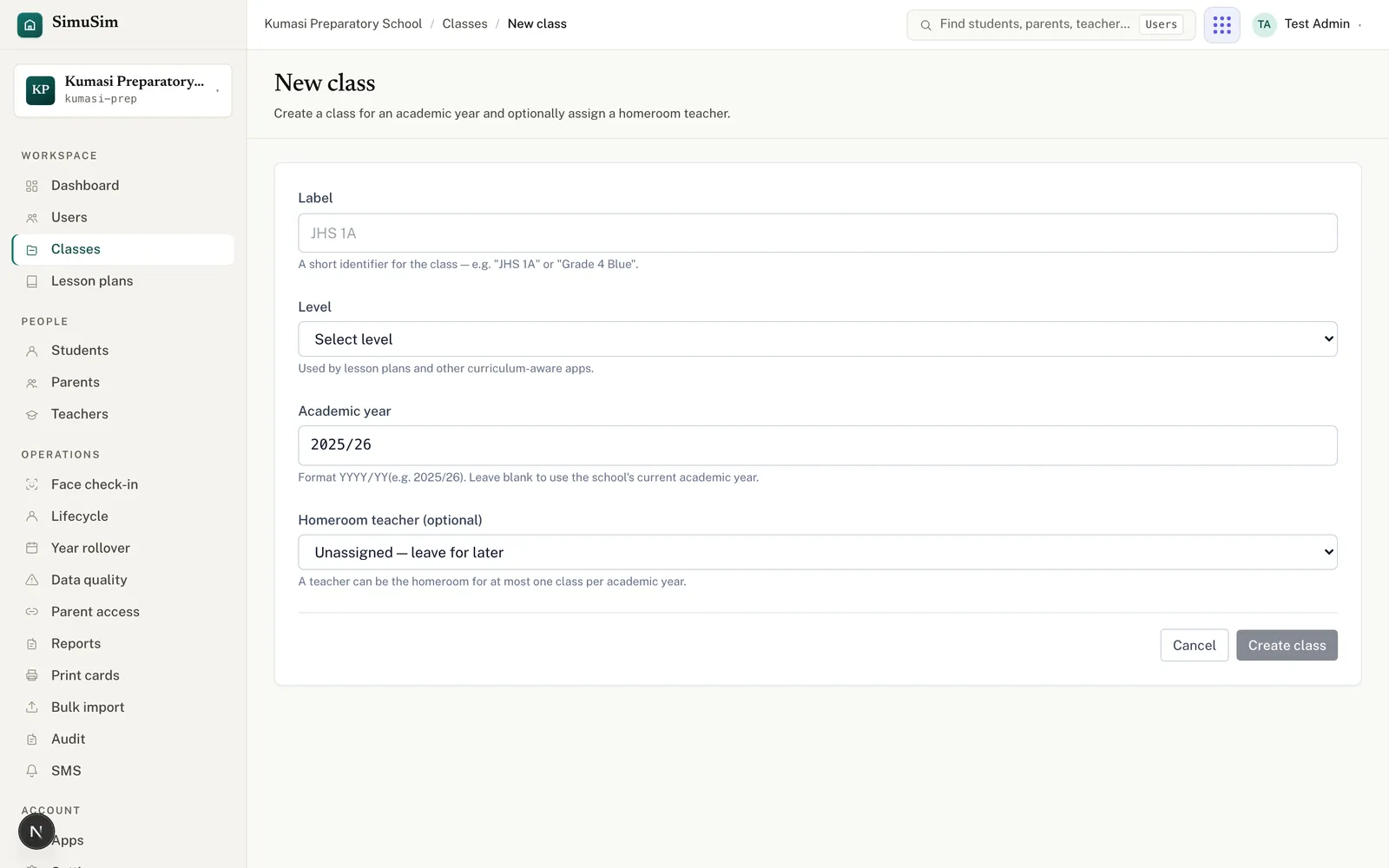
Open Classes → New class. Enter the Label (placeholder JHS 1A; e.g. P.6A), pick the required Level (the form can't be submitted without it), set the Academic year (pre-filled from Settings), optionally choose a Homeroom teacher, and press Create class.
Fig.One homeroom teacher per class — they're the person who sees the class in Attendance.
§ 05Add your people
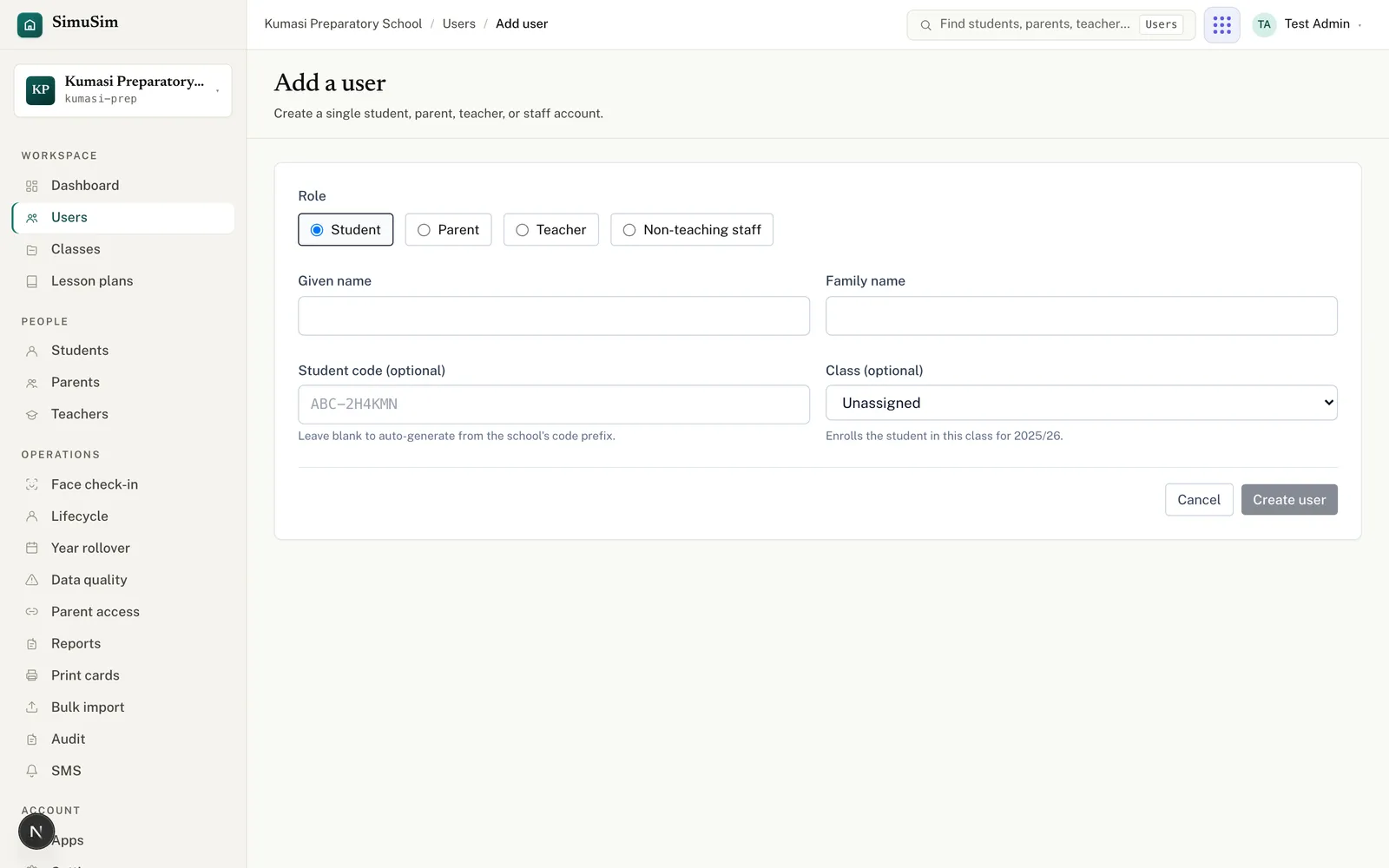
Two ways: one at a time with Add user (Users → top right), or in bulk with Import CSV from the dashboard. The CSV can create classes and link parents in the same pass — the fastest way to load a whole school.
Fig.After you create a user, the credentials screen shows their identifier and PIN once — print the card right away.
Order
Add teachers first, then students, then link parents — so the class and homeroom pickers already have the teachers to choose from. Full detail: create users and bulk import.
§ 06Print login cards
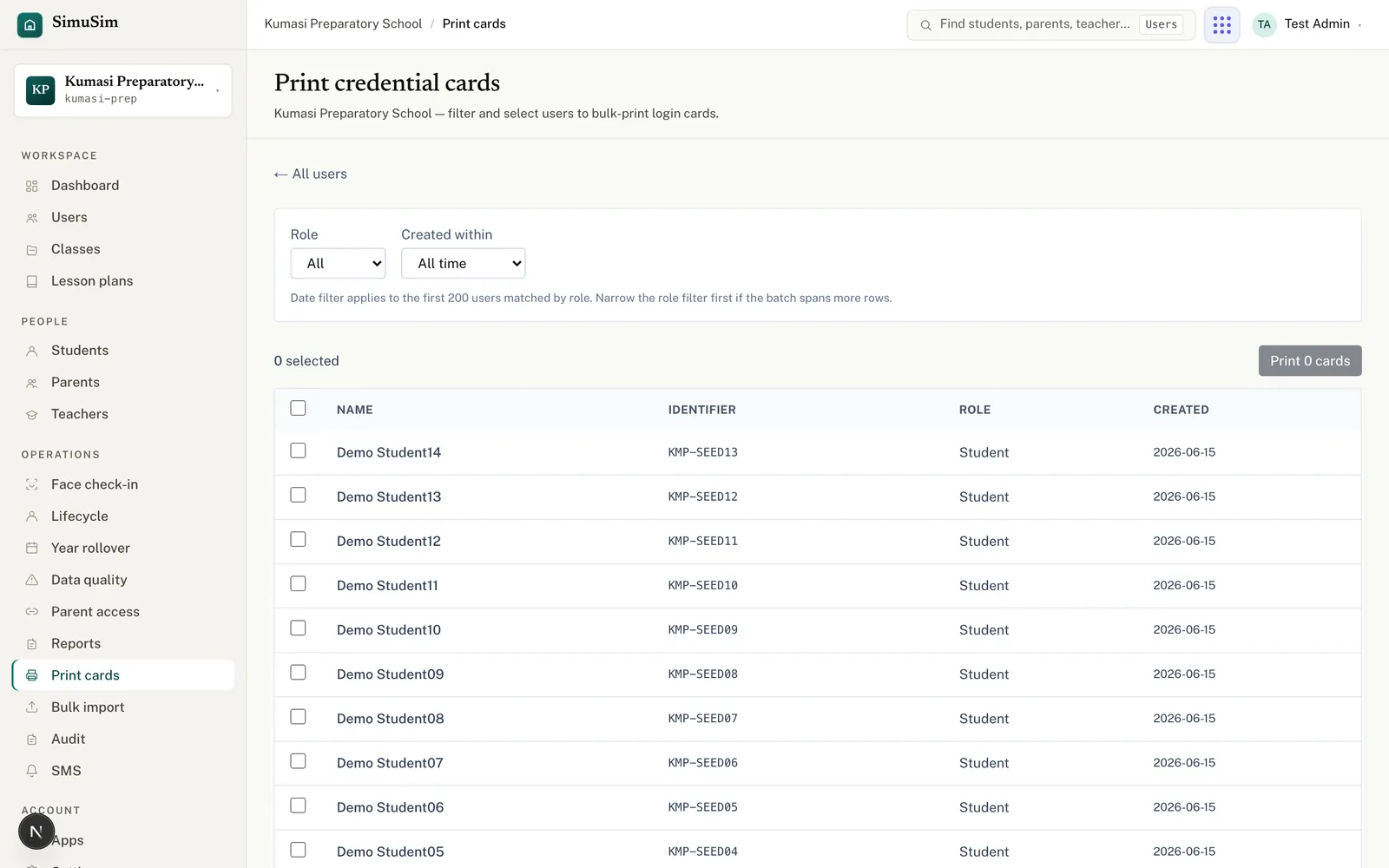
Open Print cards, filter by role and "created within", tick the people (or Select all), and press Print cards. A PDF downloads — wallet-sized cards, ready to cut and hand out.
Fig."Last 7 days" is perfect right after an import. PINs print only within ~15 minutes of creation — reset a PIN to reprint a complete card.
§ 07Check app access
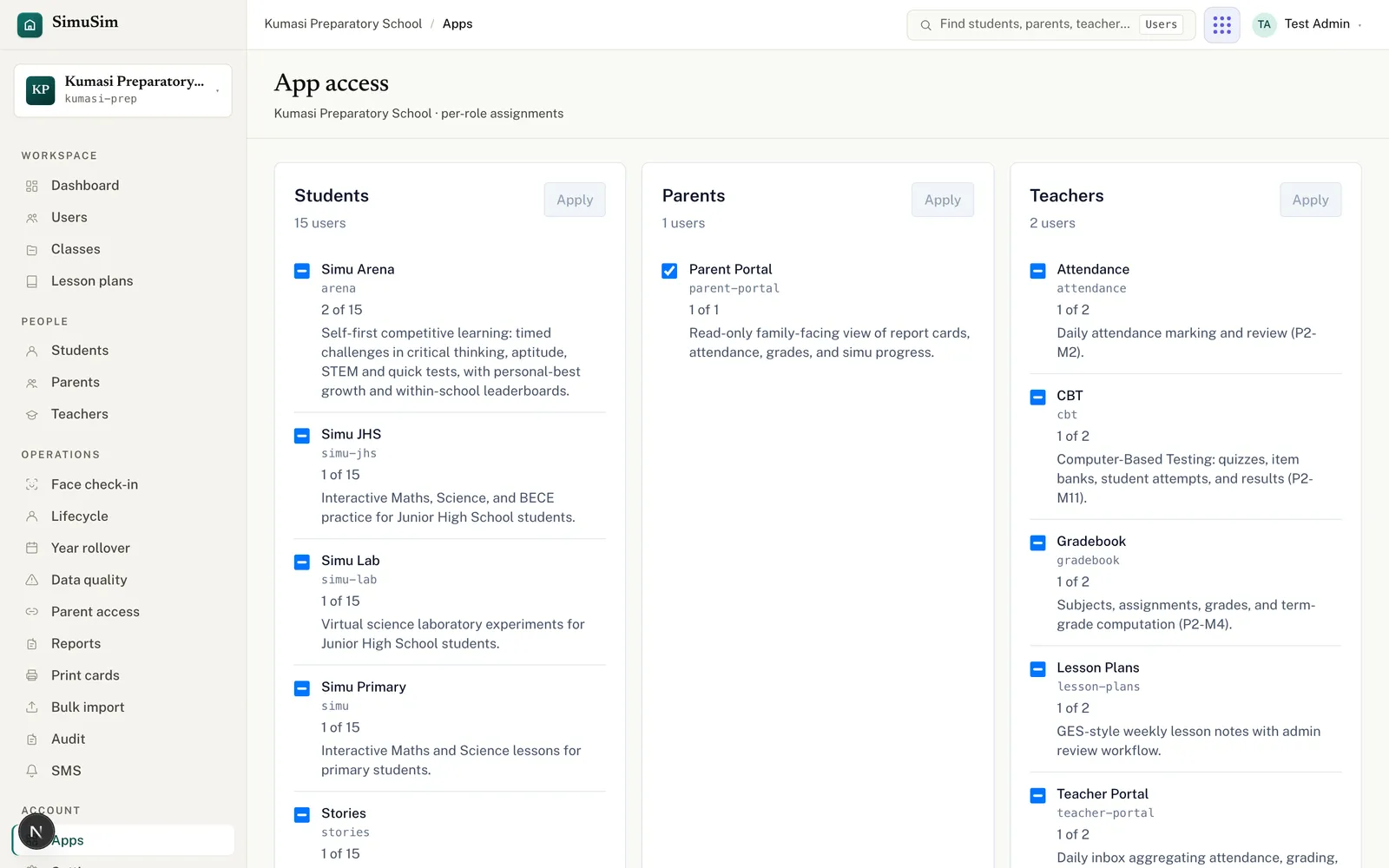
Open Apps and confirm which apps each role can use. A student who can't open Simu, or a teacher who can't open Gradebook, is almost always an app-access setting.
Fig.Three layers gate an app: the school's subscription, the role (here), and the individual user. All three must allow it.
You're live
That's the whole foundation. From here, the reference manual covers every screen in depth, and the Running a term tutorial covers the weekly rhythm.