Setup is done once; a term is the loop you run every week. Here's what to watch, where to find it, and how to keep records clean enough that term-end report cards publish without surprises.
~12 minWeekly rhythmOversight, not data entry
Teachers do the day-to-day marking and grading in their own apps. Your job as admin is oversight — confirming records are being kept, unblocking people, and keeping data clean. Every class page carries the same tab strip: Roster, Attendance, Gradebook, Report cards, Lesson Plans.
§ 01Attendance oversight
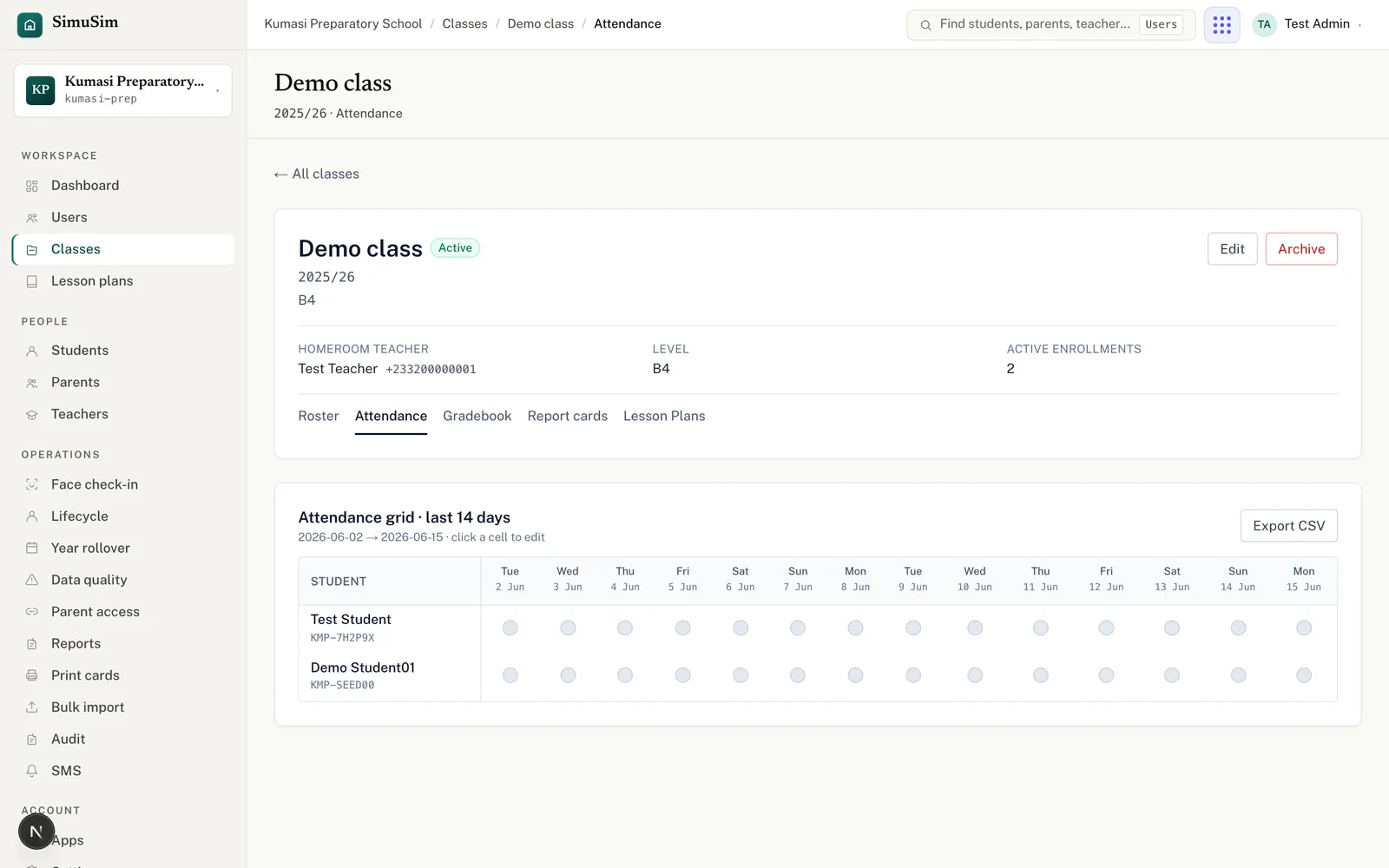
Open a class and choose the Attendance tab. You see an attendance grid for the last 14 days — every active student against each date, with statuses present, absent or late. The grid is editable: click a cell to open an edit drawer and save a correction. The homeroom teacher does the day-to-day marking in their app.
Fig.The 14-day grid. Empty dots mean no mark recorded yet — a quick way to spot a class that isn't marking.
§ 02Gradebook oversight
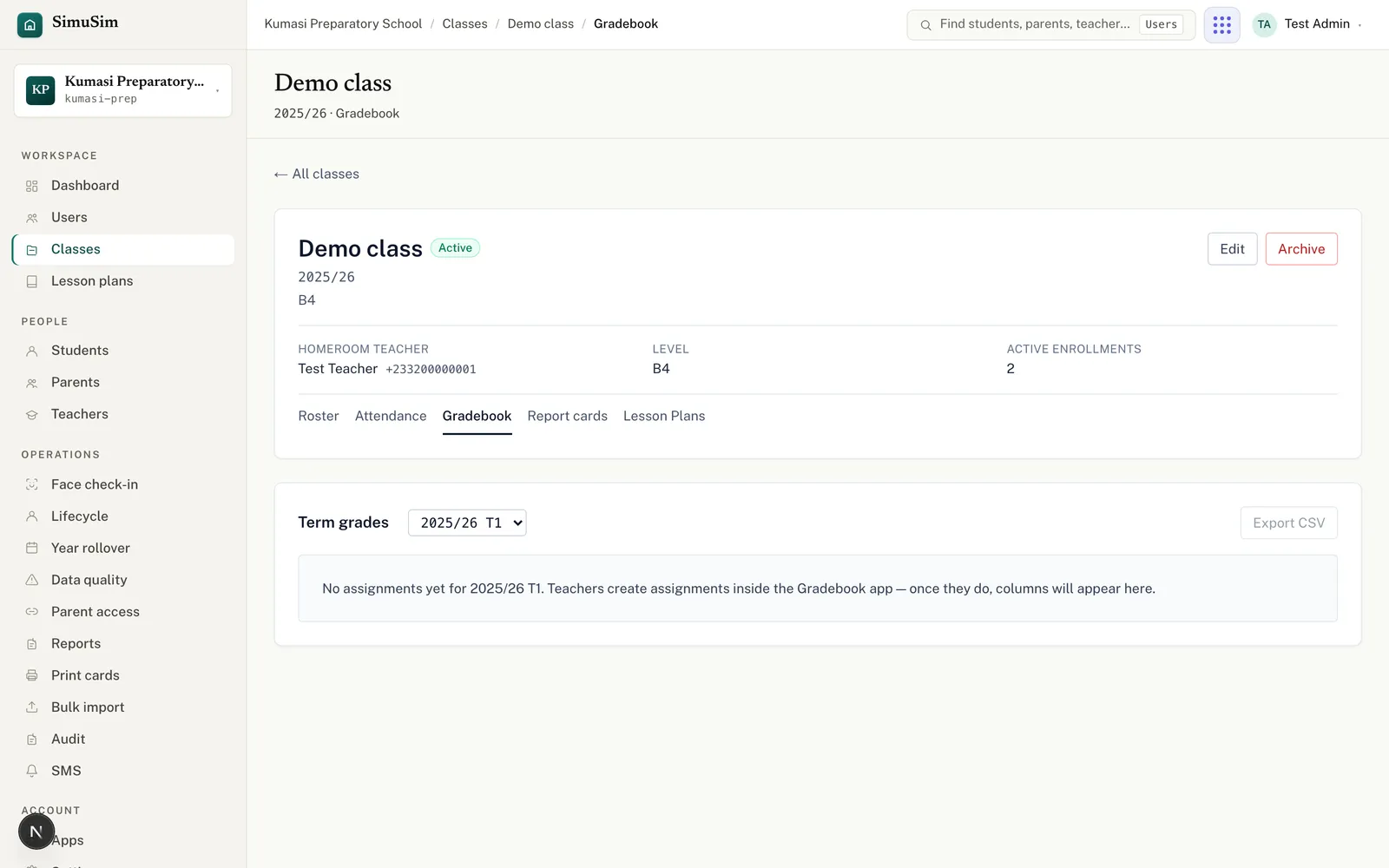
The Gradebook tab shows a term grid — students down the side, subjects across the top, colour-coded term grades. Use the term selector to look at a different term. Teachers create the assignments inside the Gradebook app; until they do, the grid says so.
Fig.Green ≥70, amber ≥50, red below — at a glance you can see who's struggling once grades are in.
§ 03Review lesson plans
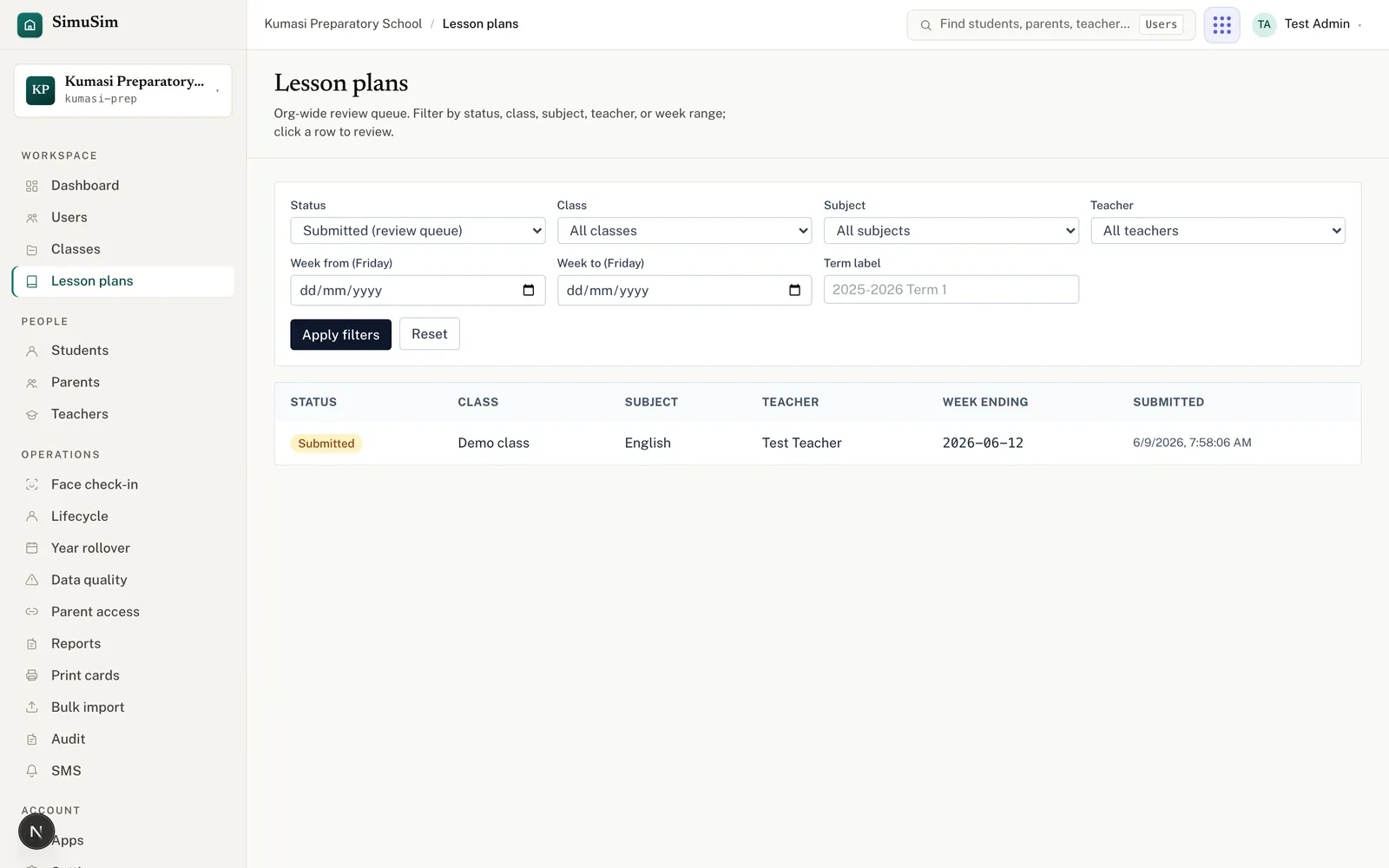
When teachers submit weekly lesson notes, they arrive in Lesson plans — filtered to Submitted by default. Open a note and either Approve it (the teacher sees a green Approved badge) or Request revision with feedback (it returns to the teacher marked Needs revision).
Fig.Filter by class, subject, teacher, week or status. Approving or returning a note notifies the teacher.
§ 04Send SMS to parents
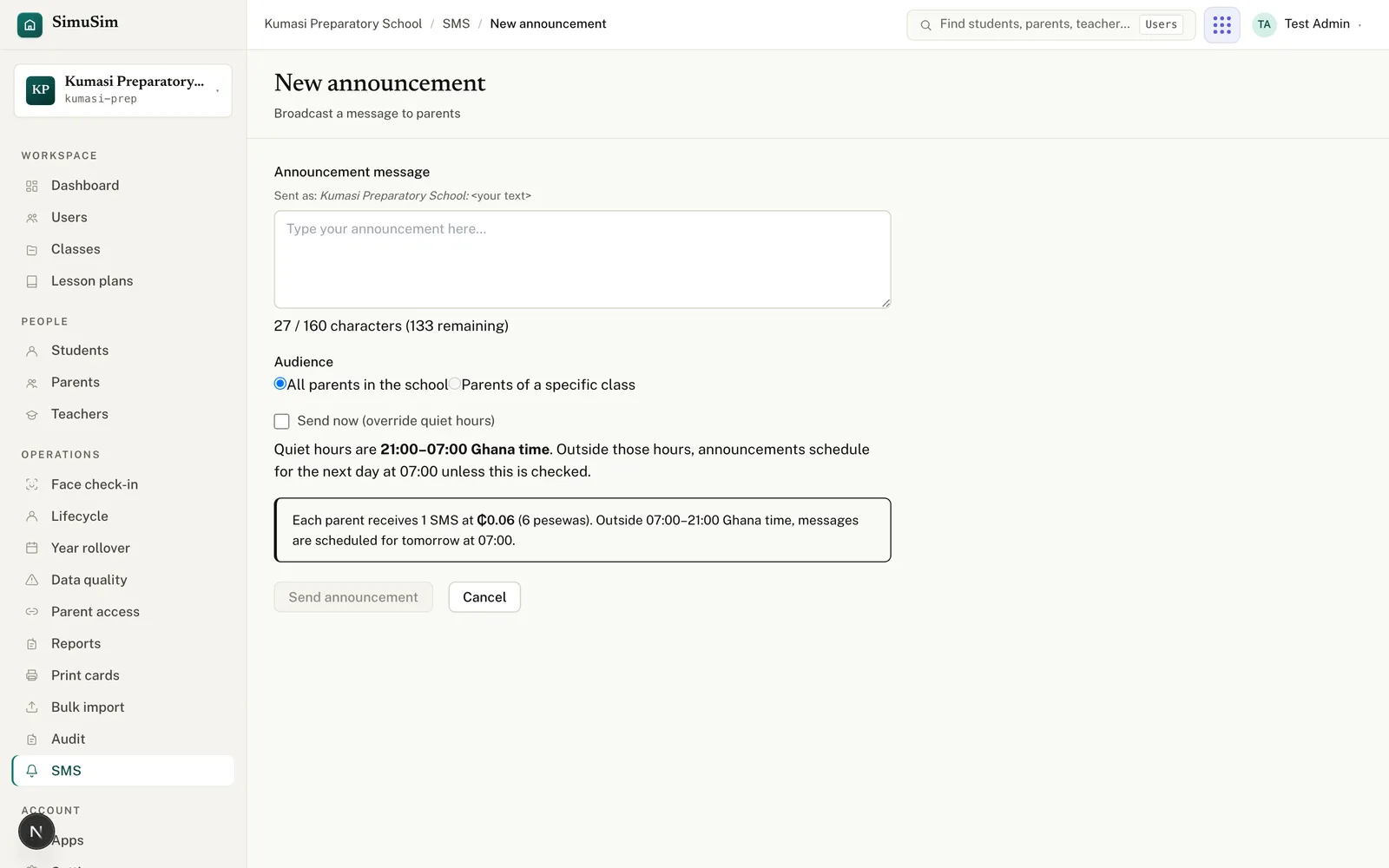
If your school has SMS enabled, open SMS → Send announcement. Type your message (the counter shows your length out of 160 characters, including the school-name prefix), choose All parents in the school or Parents of a specific class, check the cost preview, and send.
Fig.Messages composed during quiet hours (21:00–07:00) schedule for 07:00 next morning unless you tick "Send now".
§ 05Run the weekly health checks
Two pages keep your records clean. Both are linked from the dashboard's Operational alerts.
Data quality
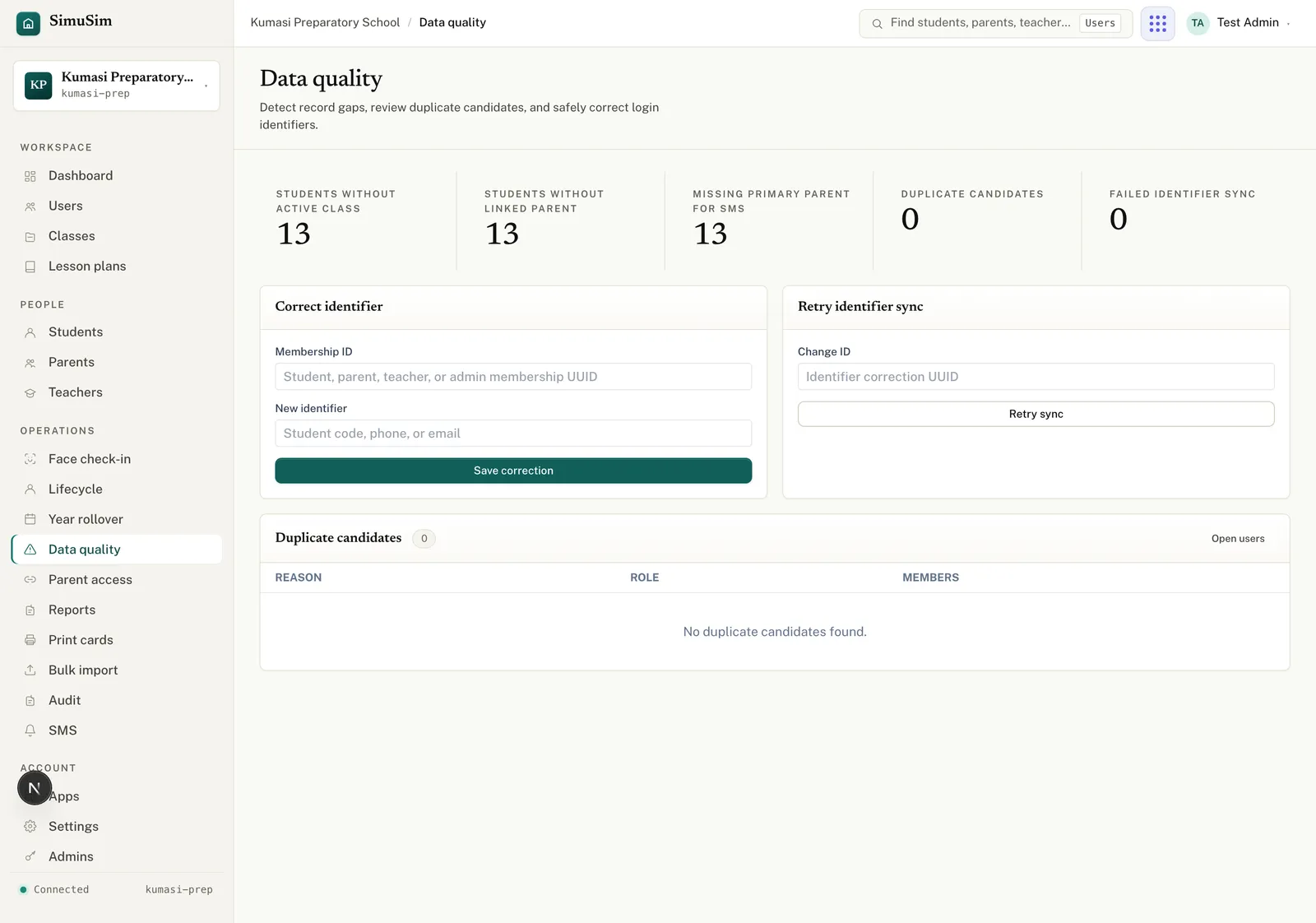
Data quality surfaces five counts — students without an active class, students without a linked parent, missing primary parent for SMS, duplicate candidates, and failed identifier syncs — and lets you fix login identifiers with Save correction or Retry sync.
Fig.Clear these counts during the term, not the night before report cards.
Parent access
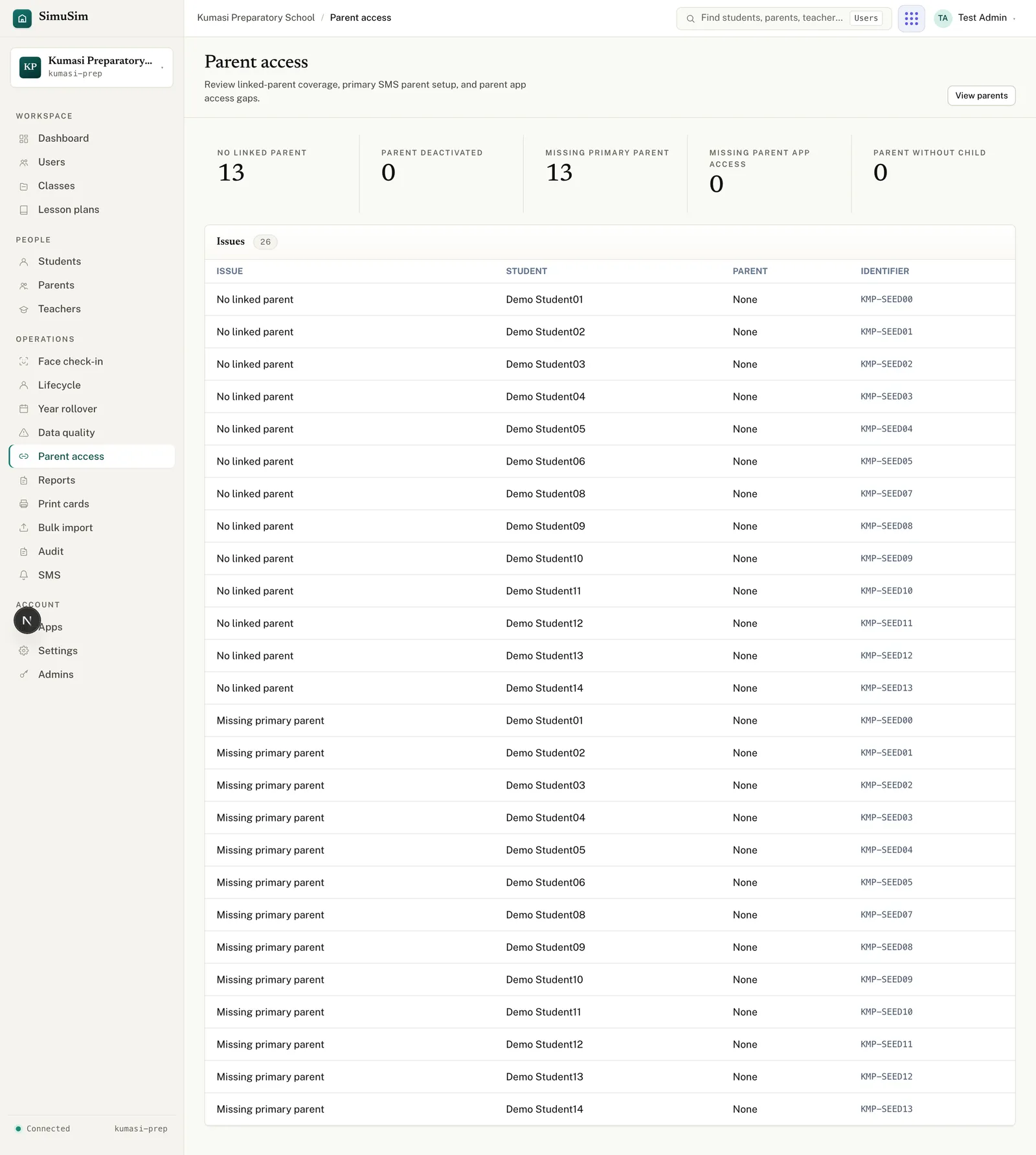
Parent access shows where parents are missing or mis-linked: No linked parent, Parent deactivated, Missing primary parent, Missing parent app access, and Parent without child. When it's all clear it reads "Parent access setup is complete."
Fig.Every gap here is a parent who won't get grades, fees or SMS. Fix them from each user's page.
§ 06Heading into term-end
As the term closes, teachers finish grades and conduct, then you publish. That whole flow — the readiness check, publishing, and handing report cards to parents — has its own walkthrough.