Publishing a term locks its grades and comments and opens the parent-facing report-card PDFs. Get there cleanly with the readiness check, then hand cards to parents — or unpublish to fix a mistake.
~10 minOnce per termSettings → Term calendar
§ 01The readiness gate
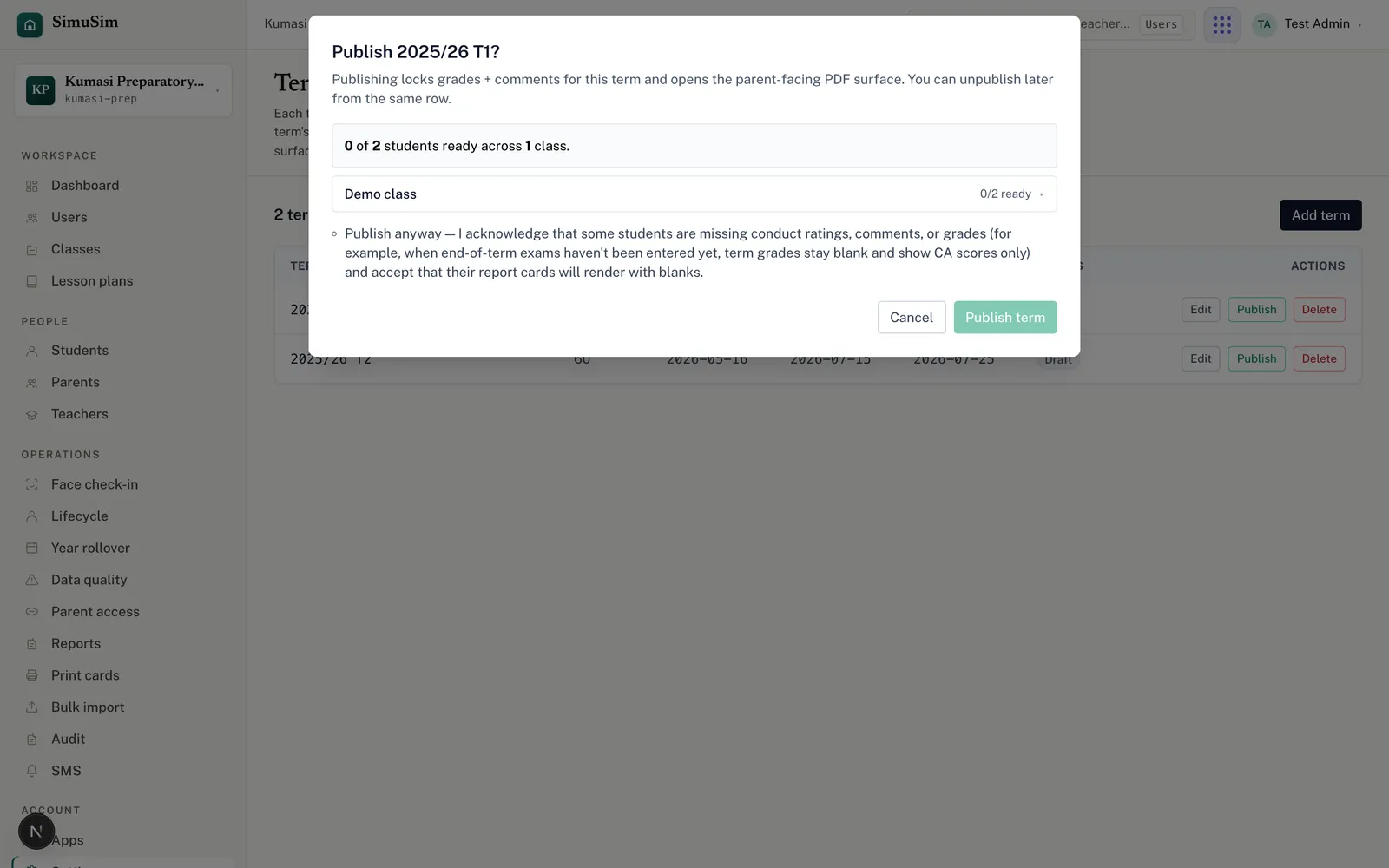
Open Settings → Term calendar and press Publish on the term's row. A dialog checks every class and tells you how ready it is — for example "0 of 2 students ready across 1 class" — and lets you expand each class to see which students are missing grades, conduct or comments.
Fig.The readiness gate. Expand a class to see exactly who isn't ready and why.
There are two kinds of blocker:
A hard block — if the term has no calendar entry, you'll see the banner "Term calendar not configured." (each class also shows a "Term calendar missing" status chip) and publishing is disabled. Add the term to the term calendar first.
An advisory warning — if some students are missing grades, conduct or comments, you can still publish, but you must tick Publish anyway to acknowledge that those report cards will render with blanks (common when end-of-term exams aren't entered yet — term grades then show CA scores only).
§ 02Publishing
Resolve what you can — chase teachers for missing grades and comments (use the Gradebook oversight view to see gaps).
Press Publish on the term row; review the readiness summary.
If there are advisory warnings you accept, tick Publish anyway.
Press Publish term. The term's grades and comments lock, and the parent-facing report cards open.
What publishing does
It freezes that term's grades and the CA/exam weighting, and switches on the report-card PDFs for parents and students. Nothing is sent automatically — you hand cards out below.
§ 03Downloading report cards
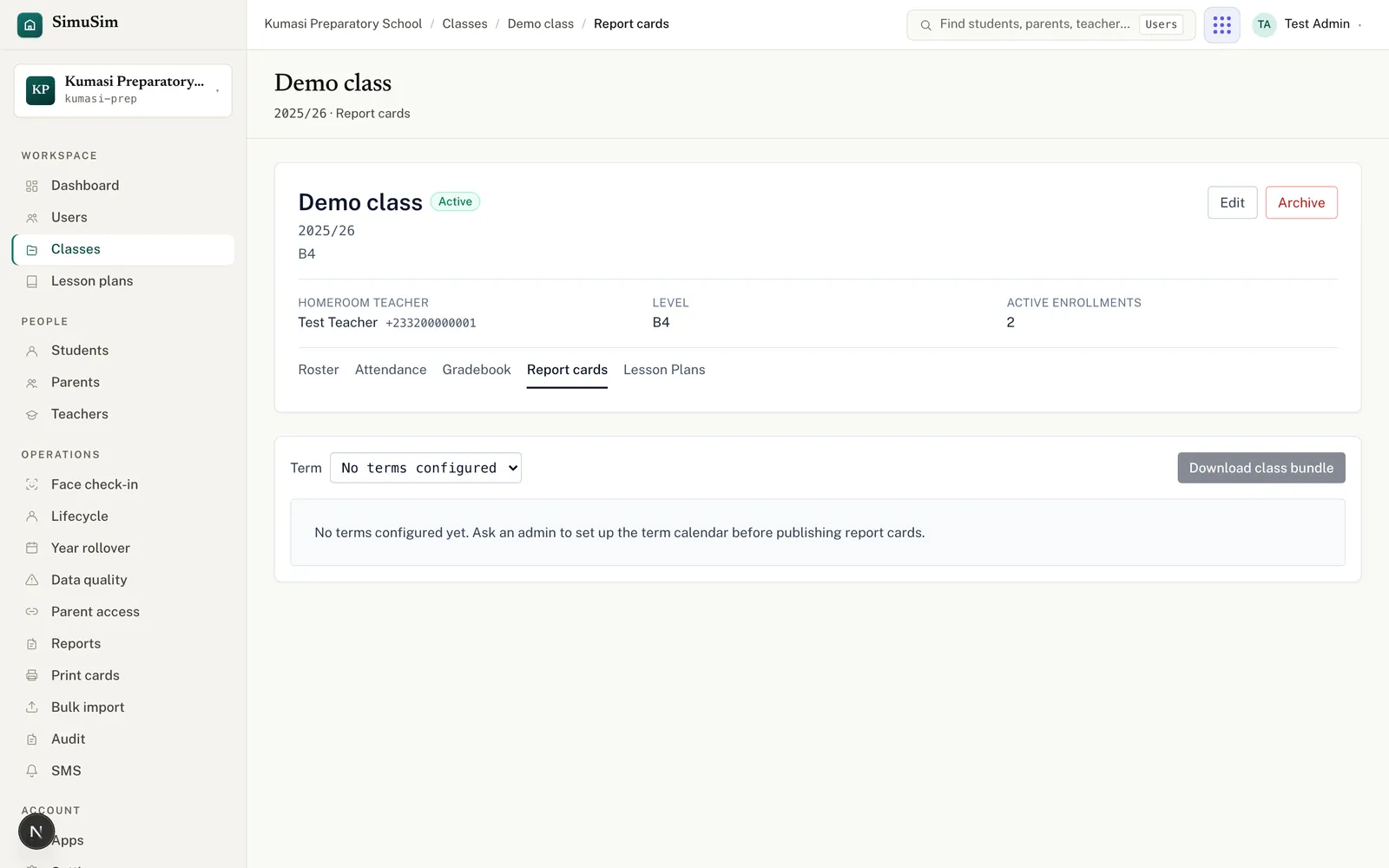
On any class, open the Report cards tab and pick the term. Once it's published you can Download class bundle (every student in one PDF) or Download PDF for an individual student.
Fig.If the term is still a draft you'll see a notice to publish it first; the download buttons stay disabled until then.
§ 04Correcting after publishing
Made a mistake? You can unpublish from the same Term calendar row, fix the grades or comments, and publish again. Parents lose access to the report card while it's unpublished, so do corrections promptly.
Heads up
Publishing locks grades. If a teacher needs to change a mark after you publish, unpublish the term, let them edit, then republish.