Build and run a quiz
CBT lets you set a timed, auto-graded quiz your students take on screen. Author the questions, publish, and the results come back graded.
~9 minStaff ConsoleAuto-graded
CBT lets you set a timed, auto-graded quiz your students take on screen. Author the questions, publish, and the results come back graded.
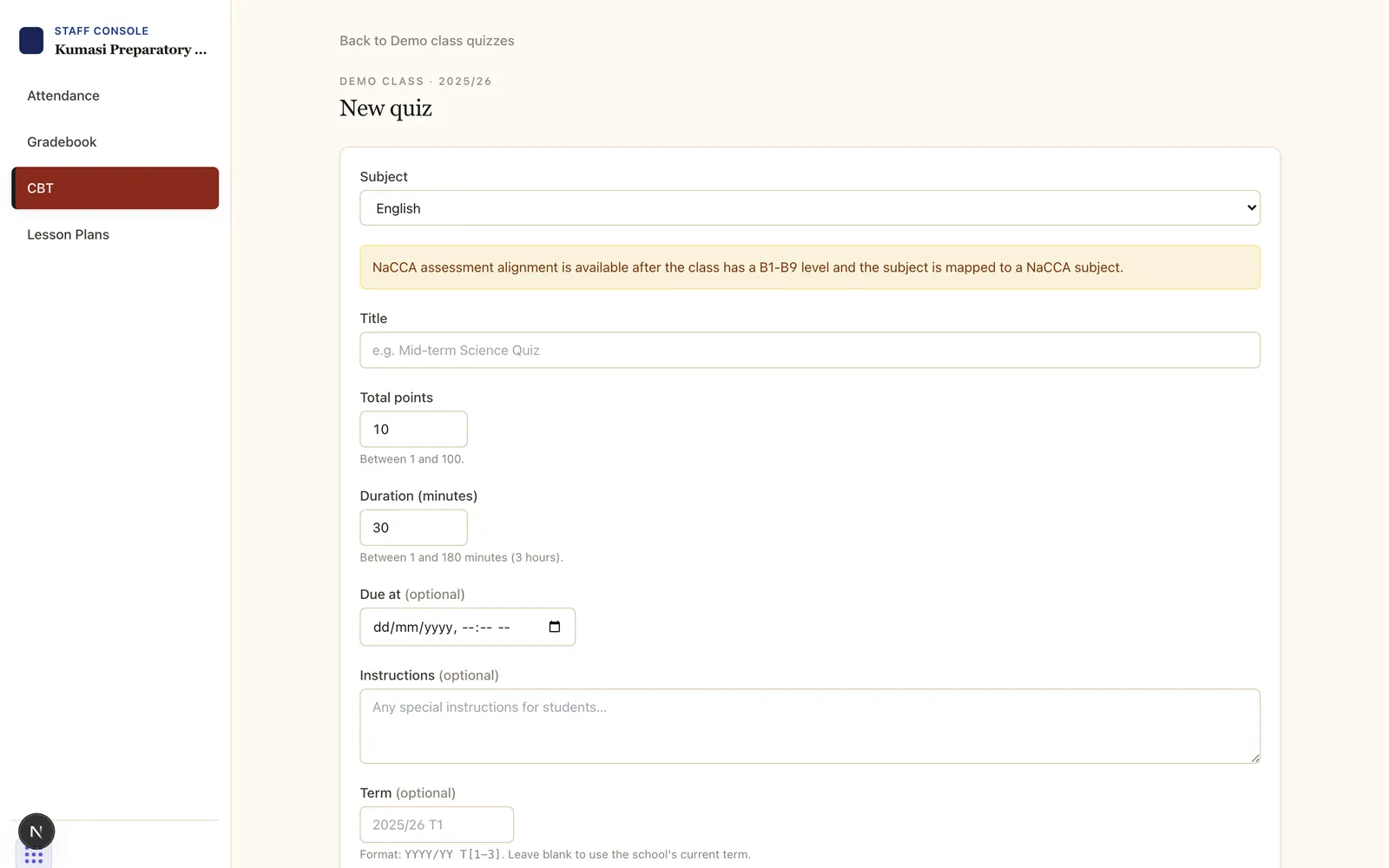
Open CBT, pick a class, and press New quiz. Choose the Subject, give it a Title, set Total points and a Duration (minutes), optionally a due time and instructions, then press Create quiz.
The quiz editor opens. Add each question, choosing a type:
Type the prompt, add options with Add option, and mark the correct answer(s). Use the reorder and delete controls to arrange items. Your draft autosaves as you write.
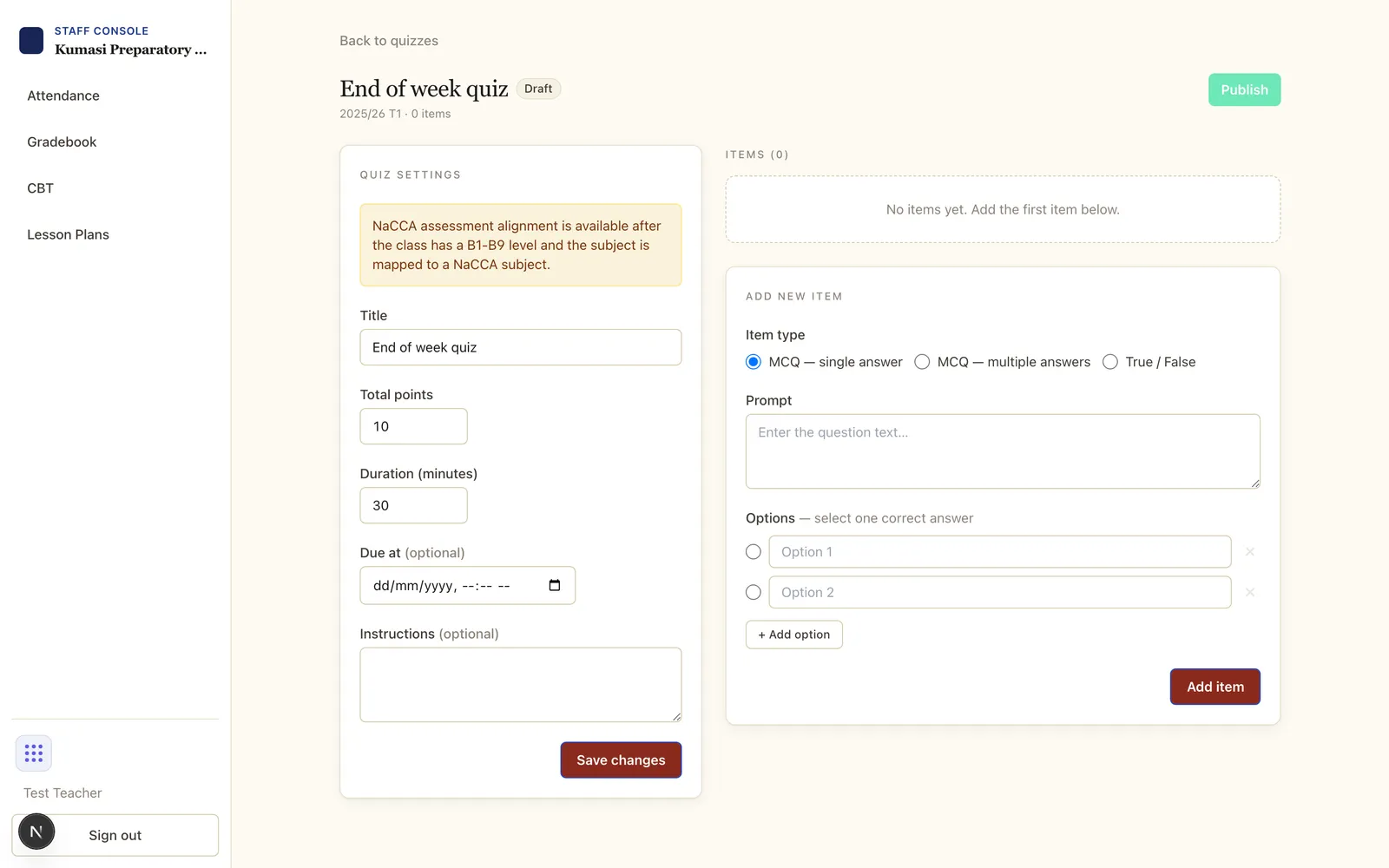
When the questions are ready, publish the quiz from the editor header. You'll be warned that you can't edit questions after this. Once published, enrolled students see it until its due time; you can Close quiz to end it early.
Open View results on a published quiz to see each student's attempt and score. Multiple-choice and true/false answers are graded automatically; open an attempt to see the per-question breakdown.
If a student needs another go — a genuine technical issue, say — use Reset attempt on their attempt so they can retake the quiz.
Email us and a real person on the Simusim team will get back to you. School staff can also reach us through their school's usual support channel.