Lesson notes: draft to approved
Each week you record what you plan to teach. Your admin reviews it — approving it or returning it with feedback — and the Teacher Portal keeps you on top of where each note stands.
~6 minStaff ConsoleWeekly
Each week you record what you plan to teach. Your admin reviews it — approving it or returning it with feedback — and the Teacher Portal keeps you on top of where each note stands.
Open Lesson Plans. You see a row for each class-and-subject you teach this week, each with a status (Draft, Needs revision, Submitted or Approved). Use the week picker — including Next week › — to move between weeks.
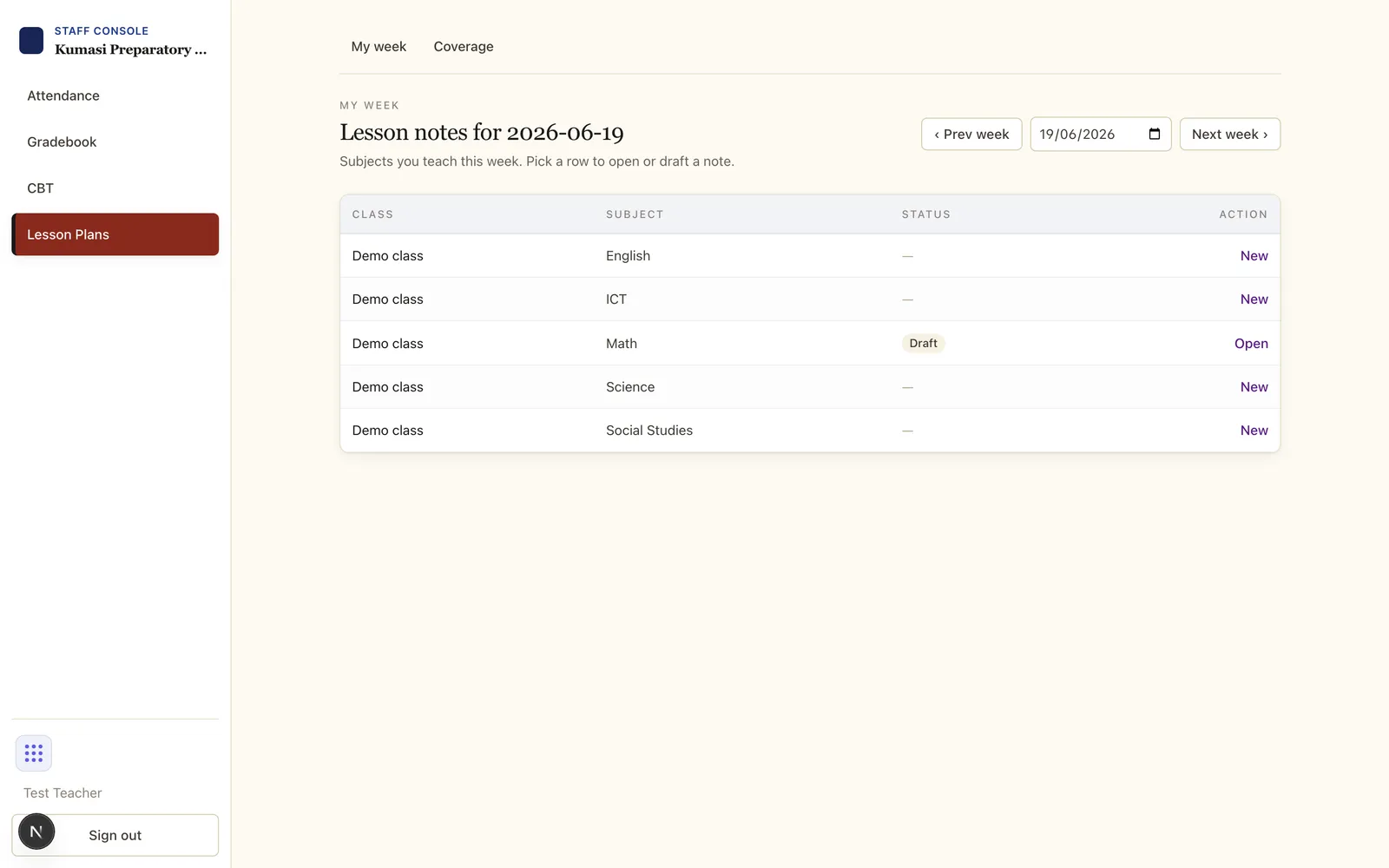
Click New (or open an existing draft), write your note, and press Save draft — it confirms with the time saved. Class, subject and week are fixed once the note is created.
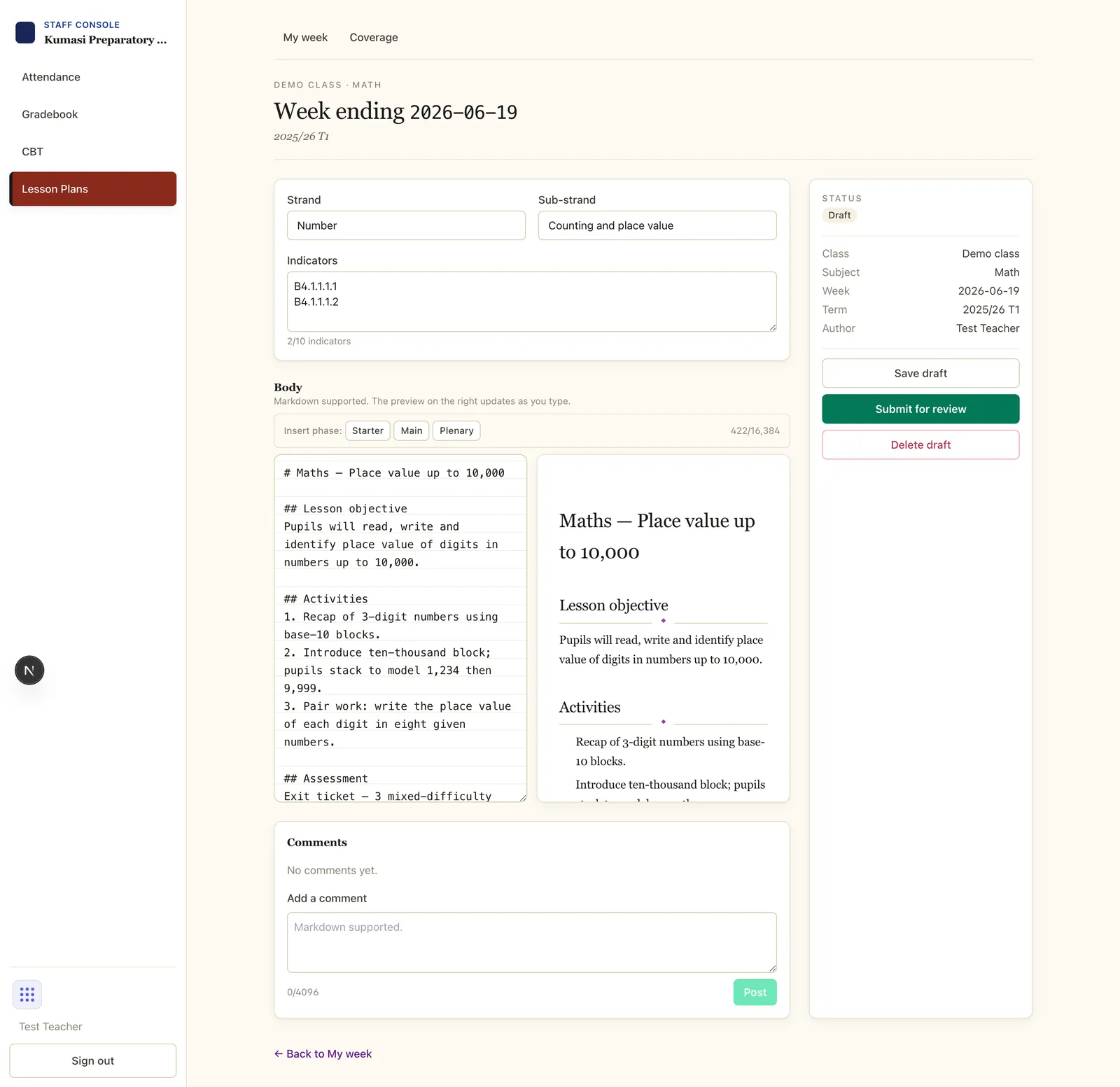
When the note is ready, press Submit for review. Its status becomes Submitted and it's locked while your admin reviews it.
If your admin asks for changes, the note comes back marked Needs revision with their message attached. Edit it, then Submit for review again. When accepted, it shows Approved with the approval date.
You don't have to hunt: the Teacher Portal's Lesson notes card counts your Drafts, Needs revision and Awaiting review, and Recent admin activity shows every approval, return and comment.
Email us and a real person on the Simusim team will get back to you. School staff can also reach us through their school's usual support channel.