You use two apps: the Teacher Portal (your daily briefing) and the Staff Console (where you mark attendance, grade, build quizzes and write lesson notes). Here is the whole loop in five steps.
~8 minteacher.simusim.comSign in: phone + PIN
§ 01Sign in
Open your school's sign-in page, choose the Parent or Teacher door, and sign in with your phone number and PIN. You land on the Teacher Portal — your home base.
§ 02Read your daily briefing
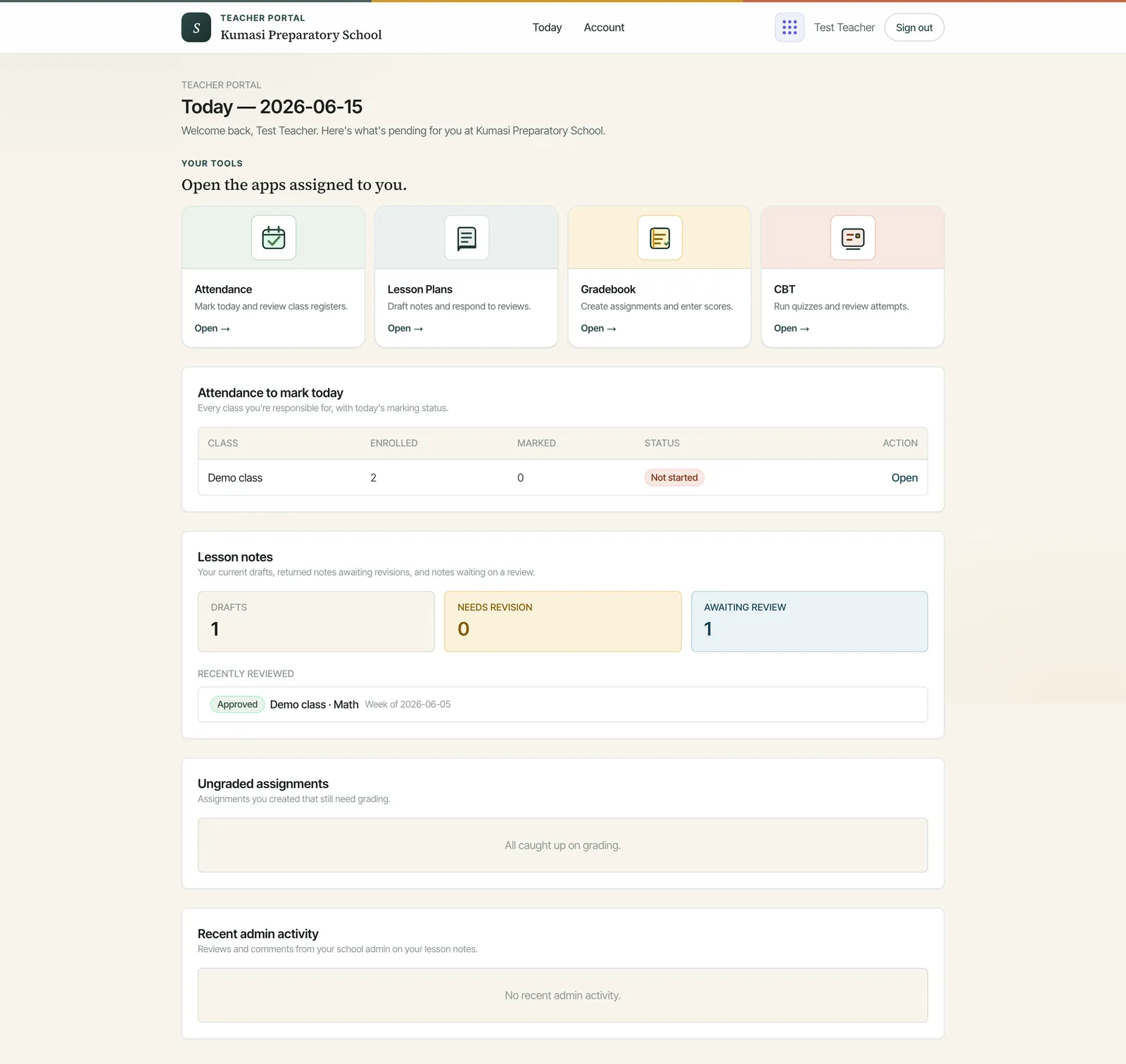
The Teacher Portal shows everything pending: classes to mark, lesson notes in Drafts / Needs revision / Awaiting review, ungraded assignments (with a Grade now link), and Recent admin activity. The four cards under Your tools open each Staff Console module.
Fig.Your daily briefing. Each "Open" card hands you straight into the matching Staff Console module.
§ 03Mark attendance
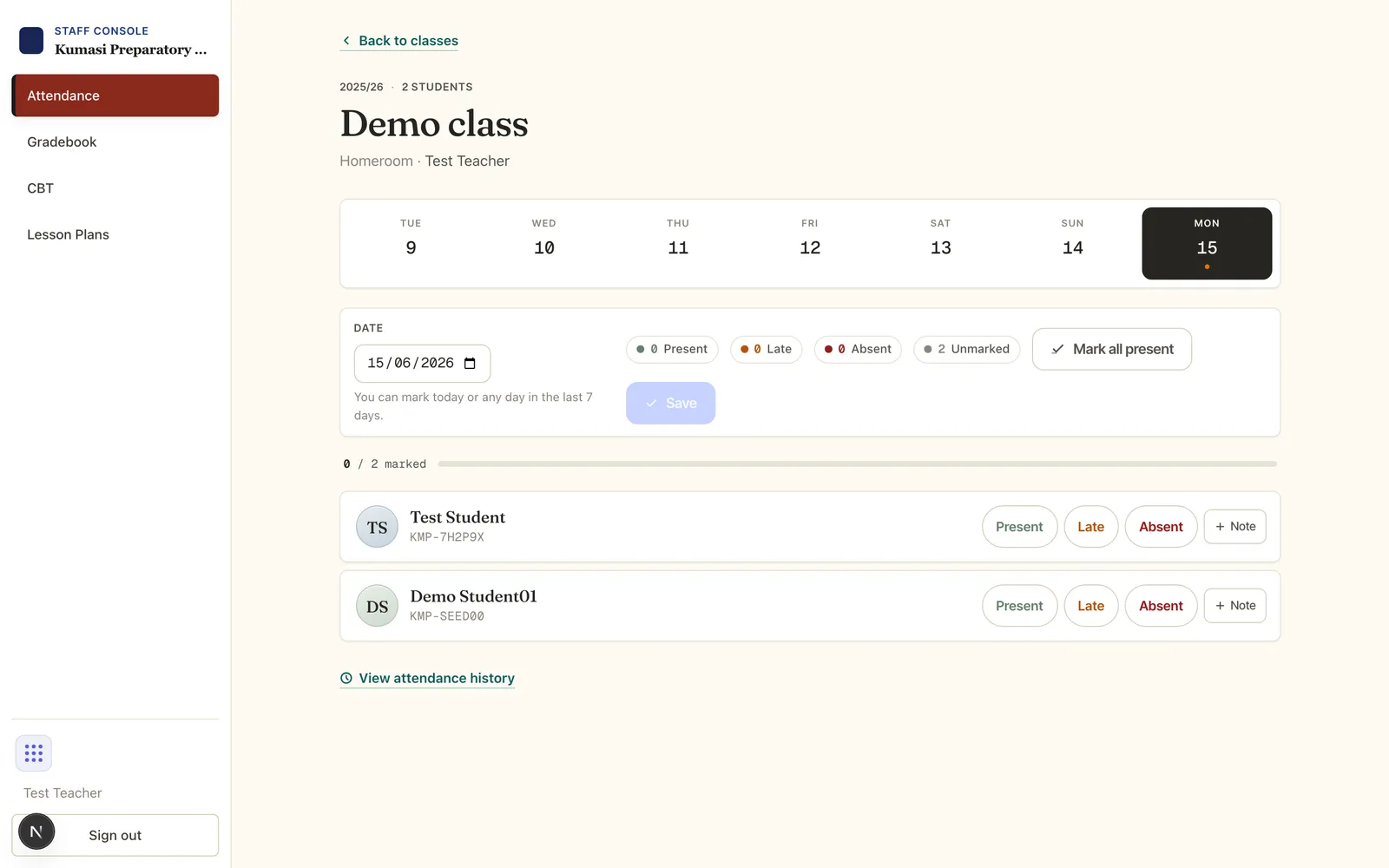
Click Attendance (or the Open link on a class). Tap Present, Late or Absent for each student — or press Mark all present and adjust the exceptions — then Save.
Fig.Mark all present, then fix the few who weren't. Full detail in the Attendance tutorial.
§ 04Find what needs grading
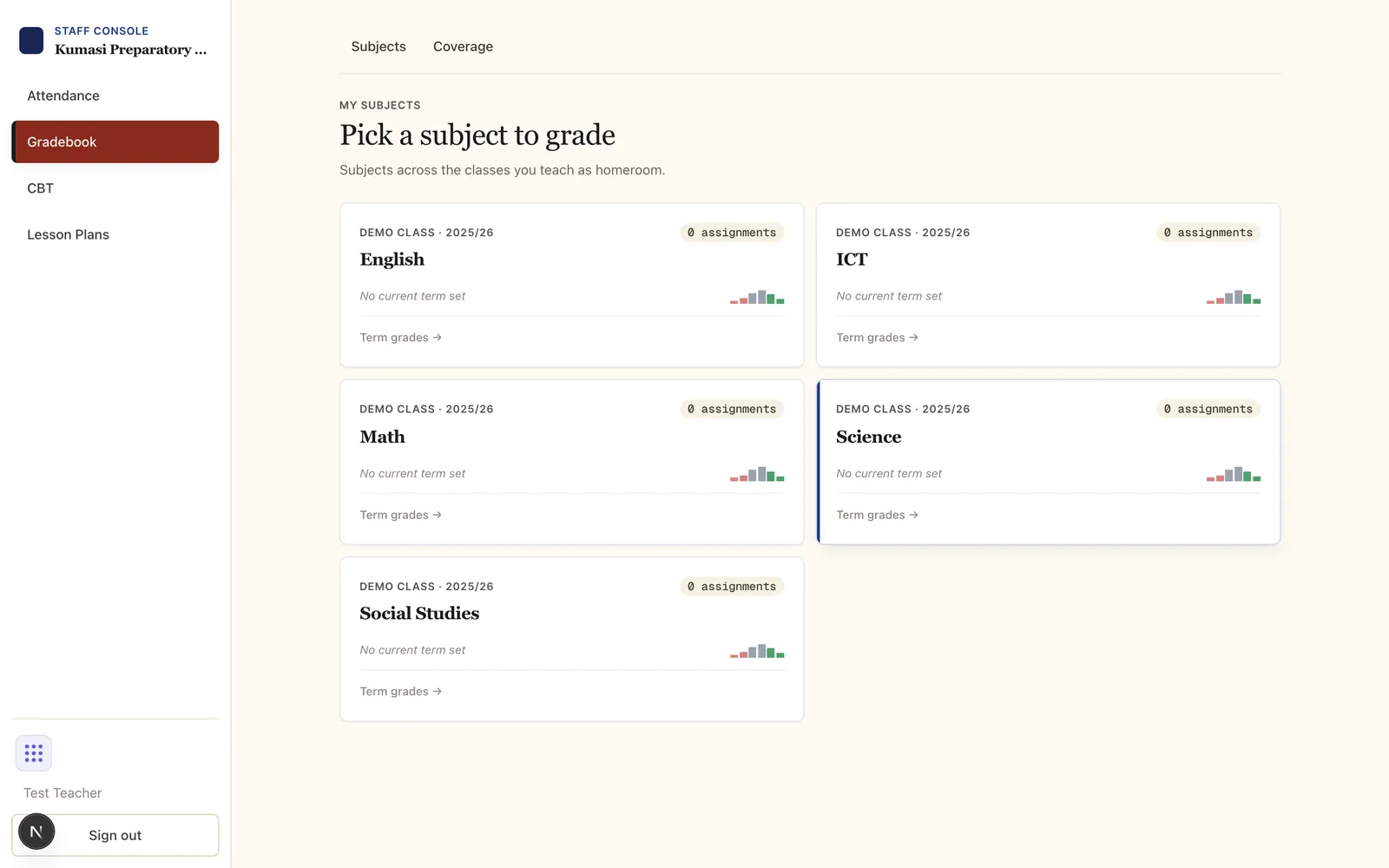
Open Gradebook and pick a subject. Create CA or Exam assignments and enter scores. The portal's Ungraded assignments card and its Grade now link always take you straight to what's outstanding.
Fig.One card per subject you teach. Open one to create assignments and enter scores.
§ 05Write a lesson note
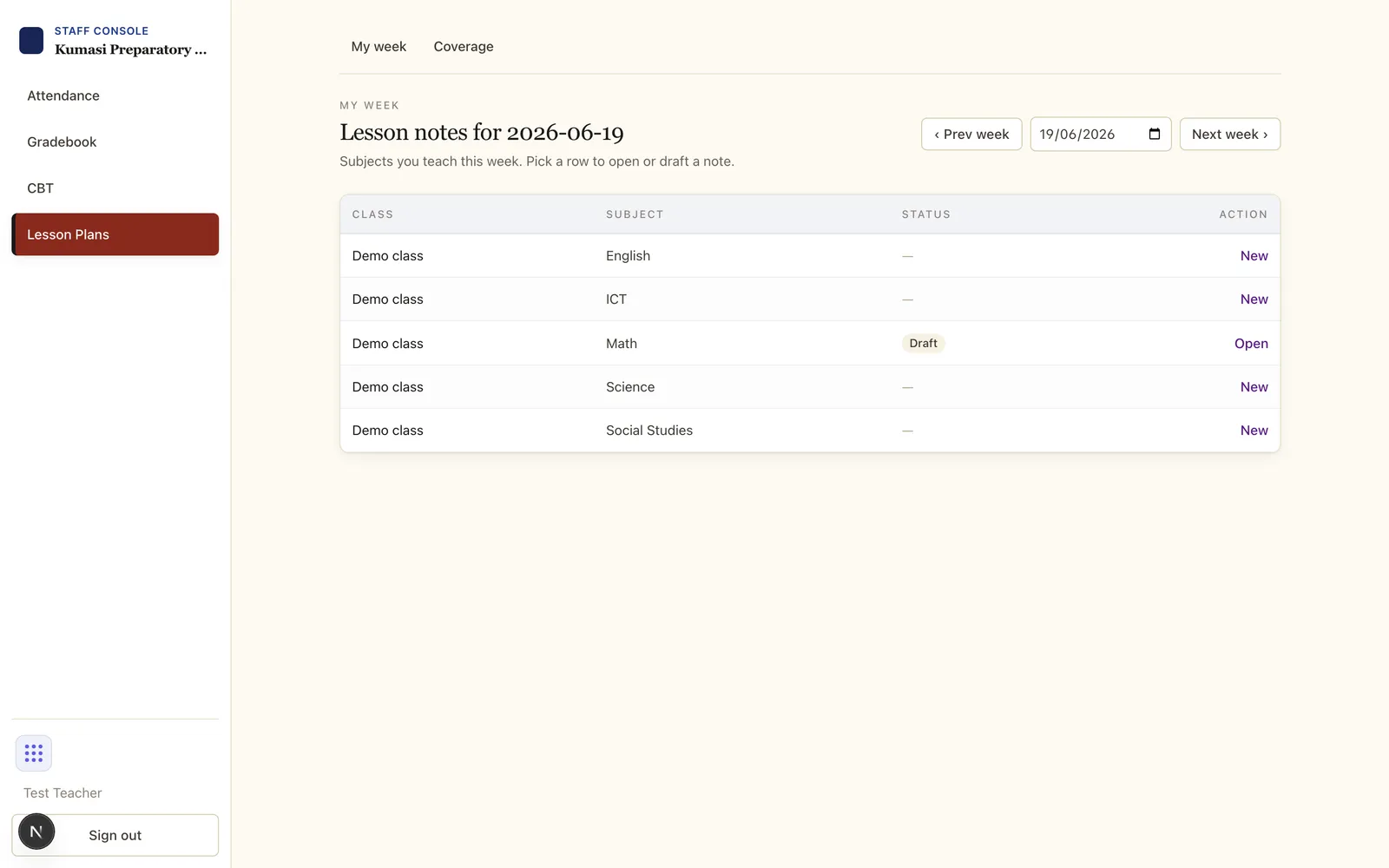
Open Lesson Plans to see your subjects for the week. Start a note, Save draft, then Submit for review when it's ready — your admin approves it or returns it with feedback.
Fig.Pick a row to open or draft this week's note. Use the week picker to move between weeks.